Managing daily tasks across an Apple-centric mobile environment while relying on Google Workspace for desktop or collaborative workflows presents a persistent interoperability challenge. Apple Reminders operates smoothly within iOS, iPadOS, and macOS, utilizing iCloud as its synchronization backbone. Conversely, Google Tasks functions as an integrated component of Gmail, Google Calendar, and Google Workspace, making it indispensable for users operating outside the exclusive Apple ecosystem. In 2026, bridging the gap between Apple Reminders and Google Tasks requires understanding native account integrations, third-party synchronization bridges, and automation protocols to establish a reliable, bidirectional workflow without losing critical task attributes like due dates, priority markers, and subtasks.
Understanding the Ecosystem Gap Between Apple and Google
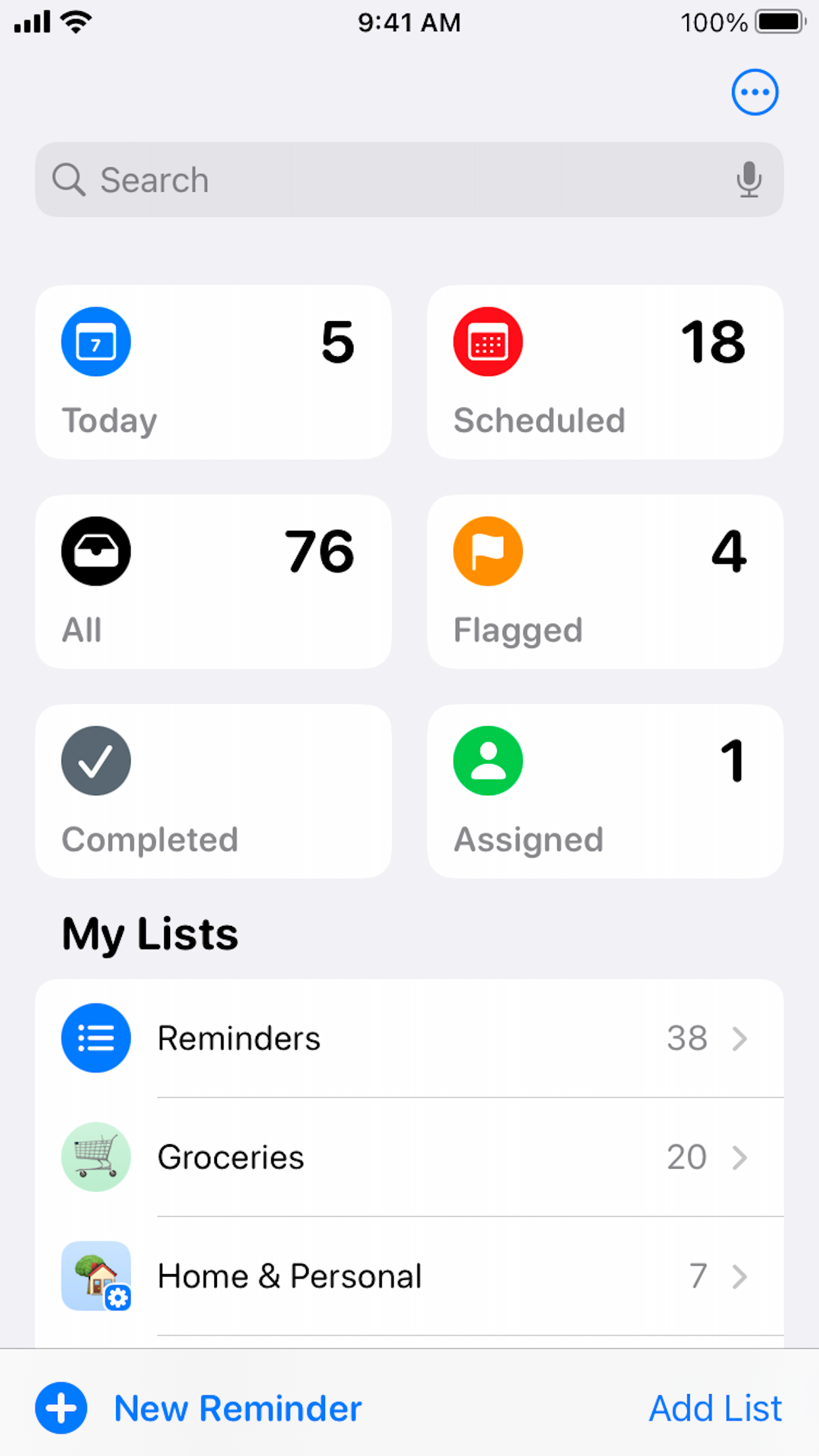
The core difficulty in synchronizing Apple Reminders with Google Tasks stems from closed proprietary APIs and differing data schemas. Apple Reminders stores tasks with rich metadata including rich text notes, subtasks, priority levels, flags, and location-based triggers. Google Tasks utilizes a streamlined data model focused on simple task titles, notes, due dates, and parent-child task hierarchies.
When attempting to sync these platforms, developers encounter rate limits on the Google Tasks API and restricted background execution limits on iOS. Direct, real-time native synchronization without an intermediary service remains officially unsupported by Apple or Google. Consequently, productivity enthusiasts and enterprise professionals must rely on account-level integrations or specialized automation tools to maintain data parity across both task managers in 2026.
Native Account Integration: Connecting Google Accounts to iOS
Apple iOS allows users to add third-party CalDAV and task-compatible accounts directly into the native Settings application. While this method does not create a direct peer-to-peer sync with the standalone Google Tasks app, it allows Apple Reminders to interact with Google data sources under specific conditions.
Setting Up Your Google Account on iOS
- Open the Settings app on your iPhone or iPad running the latest iOS version.
- Scroll down and select Calendar, then tap Accounts.
- Tap Add Account and choose Google.
- Enter your Google Workspace or personal Gmail credentials and complete the two-factor authentication prompt.
- Toggle the switch for Reminders (if available depending on account type) or Calendars to ensure task-related entries sync with the native iOS database.
Enterprise Account Consideration: Corporate Google Workspace accounts managed by strict organizational administrators may disable external CalDAV and task synchronization protocols. If the Reminders toggle does not appear, consult your IT administrator to verify whether third-party client access is permitted under your organization's security policies.
Architectural Comparison of Apple Reminders Versus Google Tasks
Evaluating the technical capabilities of both platforms highlights why a direct, flawless native sync is difficult and helps determine which features might be lost during transfer.
| Feature / Attribute | Apple Reminders (iOS Ecosystem) | Google Tasks (Google Workspace) | Sync Compatibility Status |
|---|---|---|---|
| Primary Protocol | iCloud CalDAV / Apple Push | Google Tasks API v1 | Requires Intermediary Bridge |
| Subtasks | Fully supported (nested levels) | Supported (Single-tier subtasks) | Partially Compatible (Flattens deep trees) |
| Location Triggers | Advanced (GPS, Bluetooth, Arrival/Departure) | Basic or Absent (Calendar integration only) | Incompatible (Lost during export to Google) |
| Priority Levels | Low, Medium, High, None | None (Ordered lists manually or by date) | Converted to Notes or Ignored |
| Collaboration | iCloud Shared Lists | Google Workspace Shared Spaces | Manual sharing required per platform |
Utilizing Automation Bridges for Bidirectional Synchronization
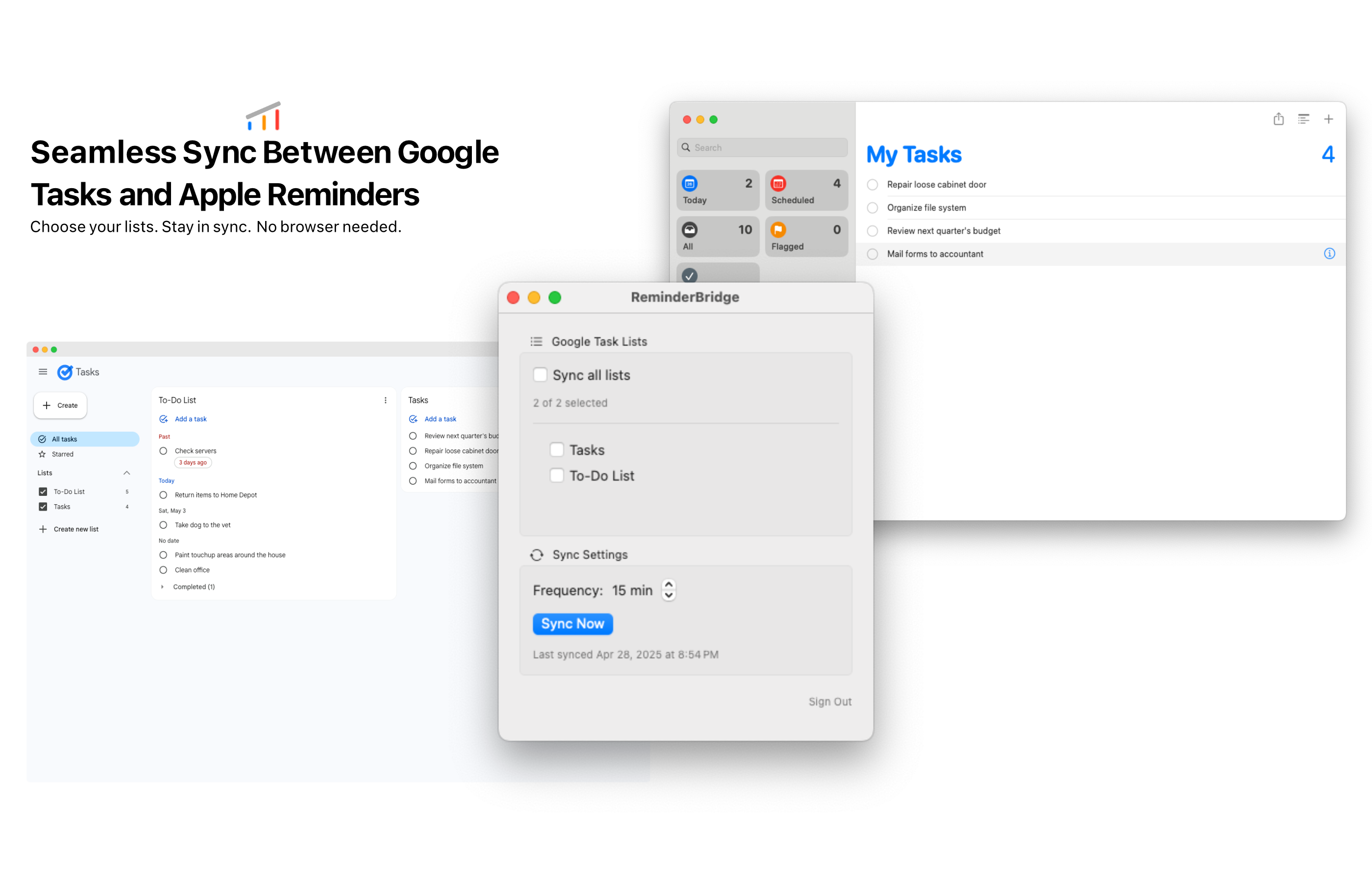
To achieve a true two-way synchronization where checking off a task in Apple Reminders automatically completes it in Google Tasks, users must implement automated workflow builders or dedicated task management bridges.
Using Automation Tools
Platforms like Make and Zapier offer pre-built recipes that monitor your Apple Reminders account and mirror actions to Google Tasks. Because iOS lacks a continuous background server listener for third-party webhooks without an app installed, these workflows often rely on trigger apps installed on your iPhone.
- Install a companion automation app such as Microsoft To Do (as an intermediary step if syncing via Outlook) or specialized task bridge applications available on the App Store.
- Configure a webhook trigger in your automation builder that activates whenever a new reminder is created in a specific Apple Reminders list.
- Map the reminder title, notes, and due date variables to the corresponding fields in the Google Tasks "Create Task" module.
- Set up the inverse automation rule: trigger a Google Tasks update when a task is completed, sending a command back to clear the corresponding item in iOS.
Performance Warning: Automated webhooks operating across consumer-grade automation platforms may experience latency ranging from two to fifteen minutes. For time-sensitive task management, relying on instant native notifications remains superior to waiting for automated batch synchronization cycles.
Step-by-Step Guide: The Email-Based Workaround Method
For users who prefer avoiding third-party automation subscriptions or complex API setups, Google Tasks offers a built-in mechanism that accepts task creation via email integration. While this method is strictly one-way (from iOS to Google), it serves as a reliable workaround for capturing items on the go.
Configuring Email-Based Task Creation
- Open your Google account settings on a desktop browser and navigate to your Google Tasks configuration.
- Set up a dedicated forwarding rule or utilize your primary email address associated with your Google account.
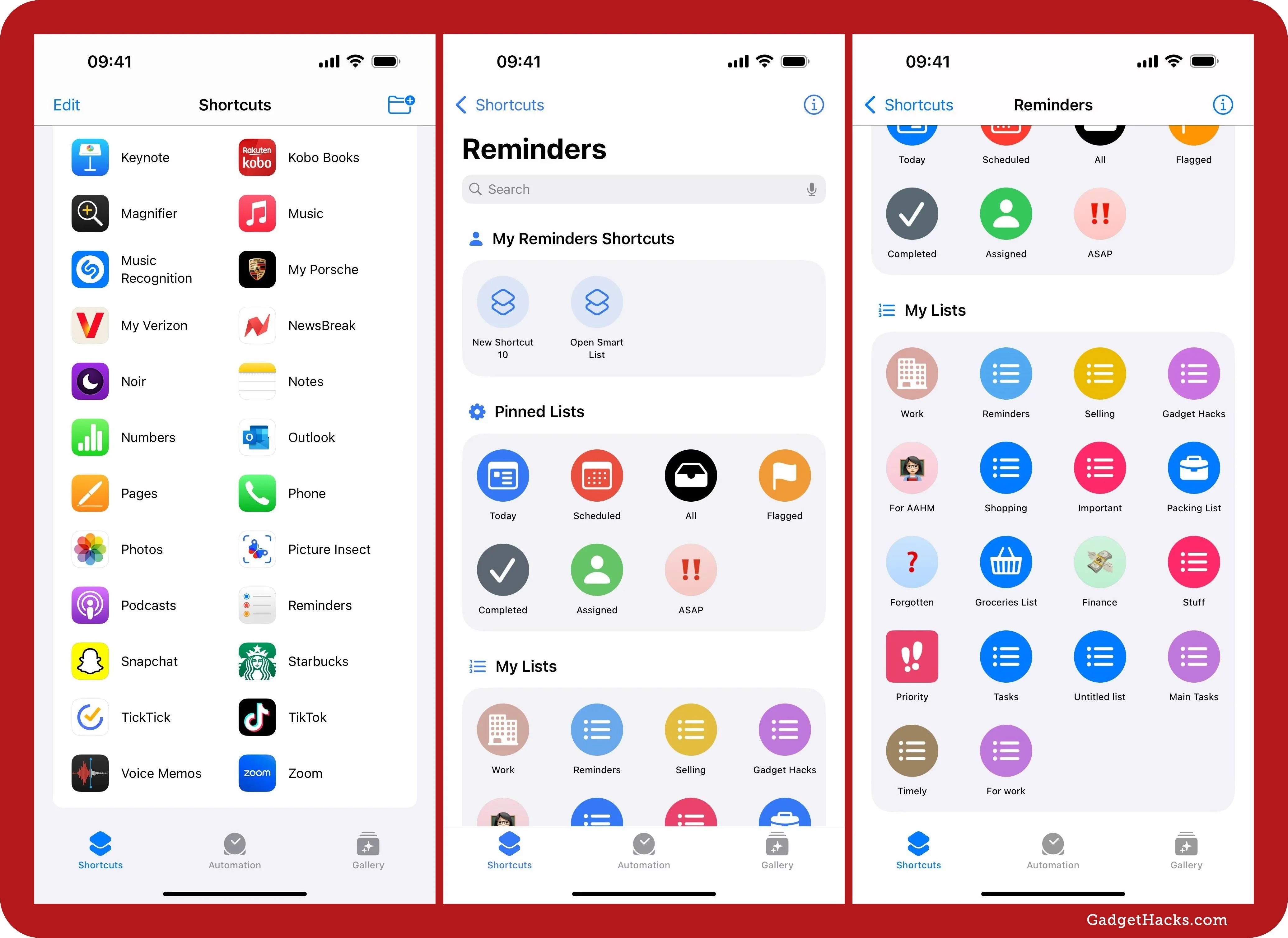
- In Apple Reminders, create a shortcut using the native Shortcuts app on iOS.
- Program the shortcut to take the text input of a new reminder and use the "Send Email" action addressed to your special Google Tasks ingestion address or an integrated task-capturing email bot.
- Execute the shortcut via Siri or a home screen widget whenever you need to dispatch a task from your Apple device directly into your Google workflow ecosystem.
Pros and Cons of Synchronizing iOS Reminders with Google Tasks
Before committing to a specific synchronization strategy, analyze the operational advantages and trade-offs involved in maintaining a cross-platform task routine.
- Pros:
- Eliminates the need to switch between two entirely separate applications on mobile and desktop devices.
- Ensures tasks captured via Siri voice commands on an iPhone or Apple Watch eventually populate within your desktop Google Calendar sidebar.
- Centralizes professional workspace tasks and personal reminders into a unified review queue.
- Cons:
- Rich metadata such as Apple-specific attachments, inline images, and geofencing triggers do not translate into Google Tasks.
- Potential for duplicate entries or sync conflicts if both lists are edited simultaneously without a robust conflict-resolution algorithm.
- Ongoing reliance on third-party connectors introduces potential points of failure during API updates.
Troubleshooting Common Synchronization Failures
When synchronization stops functioning correctly, systematic diagnostic steps can isolate and resolve the issue quickly.
Diagnostic Checklist for Failed Syncs
- Token Expiration: Re-authenticate your Google account within your iOS settings or automation app. OAuth tokens frequently expire due to security updates or password changes.
- Network Restrictions: Ensure your iOS device is not running a VPN or firewall policy that blocks outbound calls to Google API endpoints (
www.googleapis.com). - List Mapping Errors: Verify that the target list ID in Google Tasks has not been deleted or renamed, which breaks automated webhook connections instantly.
- App Updates: Ensure both your iOS operating system and any intermediary applications are updated to their latest 2026 software releases to maintain API compatibility.
Frequently Asked Questions
Can Apple Reminders sync directly with Google Tasks without a third-party app?
No, Apple Reminders and Google Tasks use completely different backend protocols and APIs, requiring an account integration wrapper or an automation tool to bridge the data gap. While you can sync Google Calendars and basic contacts natively on iOS, standalone Google Tasks require specialized workflows.
Do subtasks transfer successfully from Apple Reminders to Google Tasks?
Subtasks transfer with limitations because Google Tasks supports a simpler single-tier hierarchy compared to Apple Reminders' multi-level nesting capabilities. Deeply nested subtasks in iOS often flatten into standard subtasks or append themselves to the task notes during migration.
Will location-based reminders work when synced to Google Tasks?
No, location-based triggers relying on Apple's CoreLocation framework and geofencing features do not transfer to Google Tasks. Those specific attributes remain exclusive to the Apple ecosystem and will be stripped during cross-platform conversion.
Is there any security risk in using automation platforms for task syncing?
Using reputable automation platforms that adhere to modern OAuth 2.0 security standards poses minimal risk for standard task data. However, users managing sensitive enterprise or personal data should review the specific privacy policies and data retention practices of any intermediary integration service.
How often do third-party sync bridges update tasks?
Update frequency depends entirely on the automation tier you select, ranging from near-instantaneous triggers via specialized apps to polling intervals of 5 to 15 minutes on standard automation builder free tiers.
Streamline Your Cross-Platform Workflow Today
Maintaining productivity across fragmented digital environments requires deliberate system design. By implementing the right combination of account settings, automation tools, or alternative capture methods, you can successfully bridge Apple Reminders and Google Tasks to suit your 2026 workflow requirements. Audit your current task management habits, select the integration method that matches your technical comfort level, and configure your systems today to ensure seamless task visibility across all your devices.