Merging multiple PDF documents on macOS has evolved significantly, offering several native and advanced solutions depending on your precise workflow requirements. Whether you are compiling multi-page legal briefs, assembling academic portfolios, or packaging client invoices, managing your PDFs efficiently without relying on sketchy third-party web tools is essential for data security and document integrity.
Native macOS PDF Management Capabilities
Modern versions of macOS feature powerful document management capabilities built directly into the operating system. Utilizing native utilities eliminates the security risks associated with uploading sensitive documents to unverified online converters. The two primary native methods for combining PDFs on a Mac involve the Finder application and the built-in Preview app.
Utilizing the Finder Quick Actions Workflow
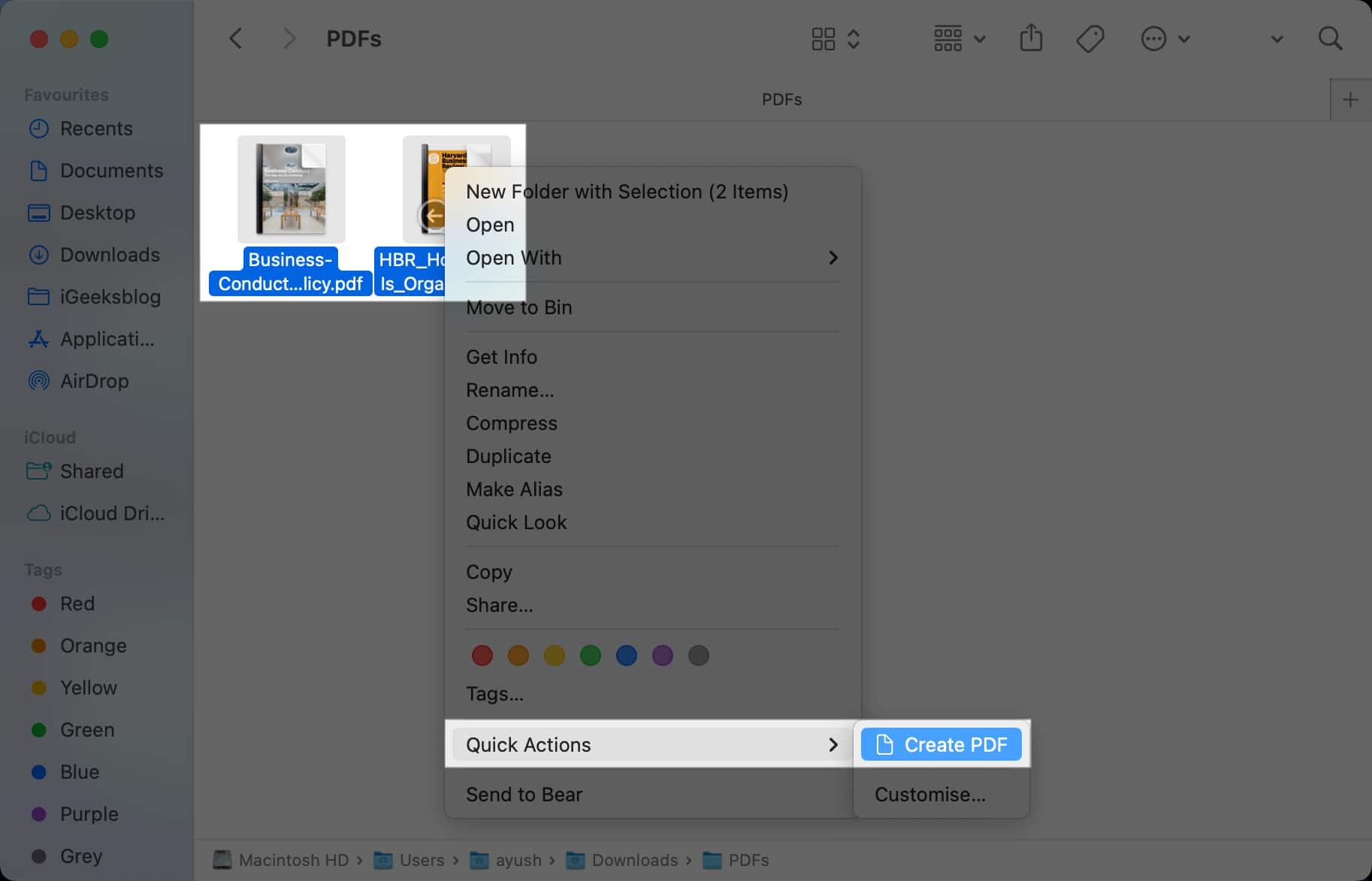
Finder provides a rapid mechanism to merge documents without even opening a dedicated application window. This streamlined approach suits quick tasks where document order is straightforward.
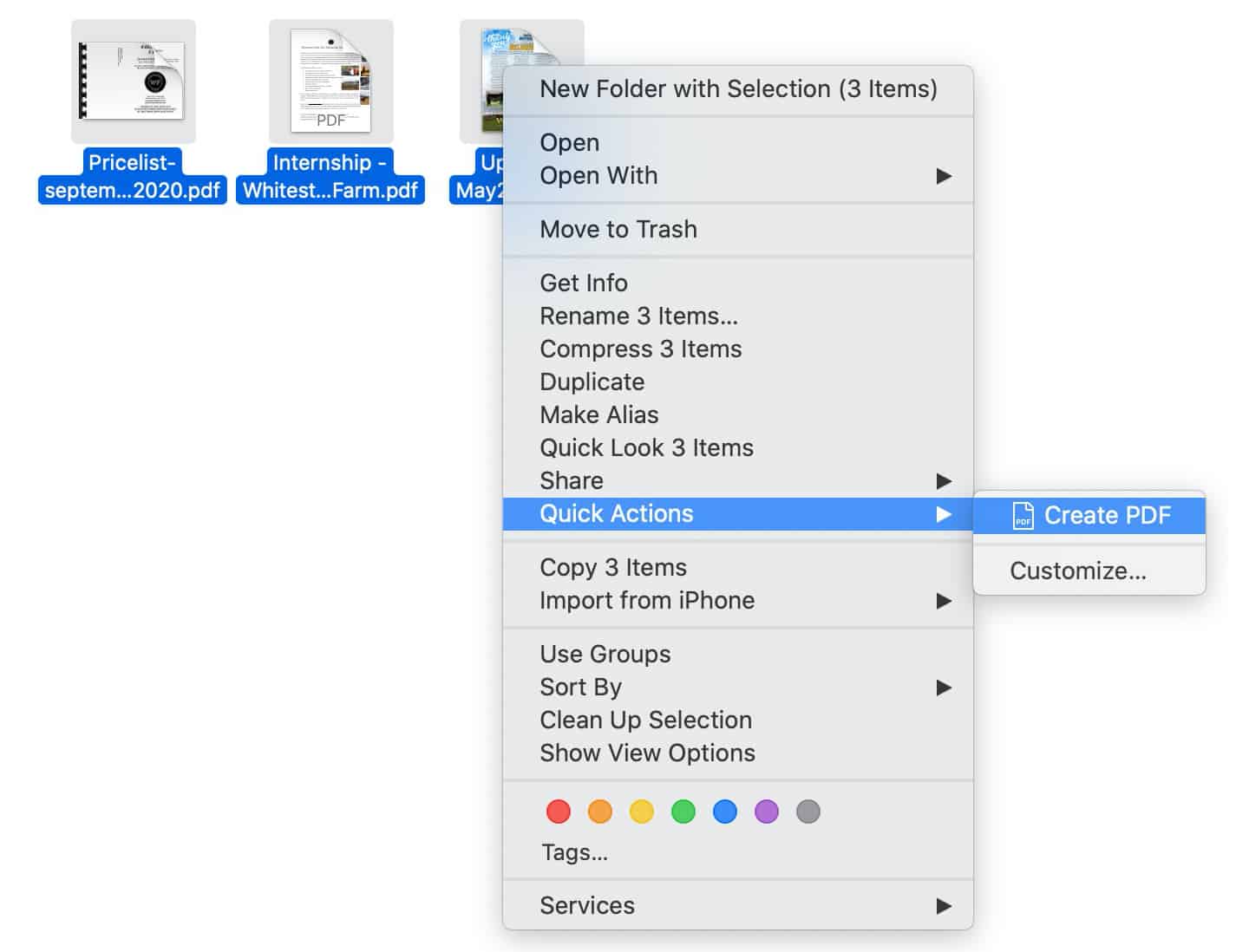
- Open a Finder window and select all the PDF files you want to combine.
- Right-click or hold the Control key and click on the selected files.
- Hover over Quick Actions in the context menu.
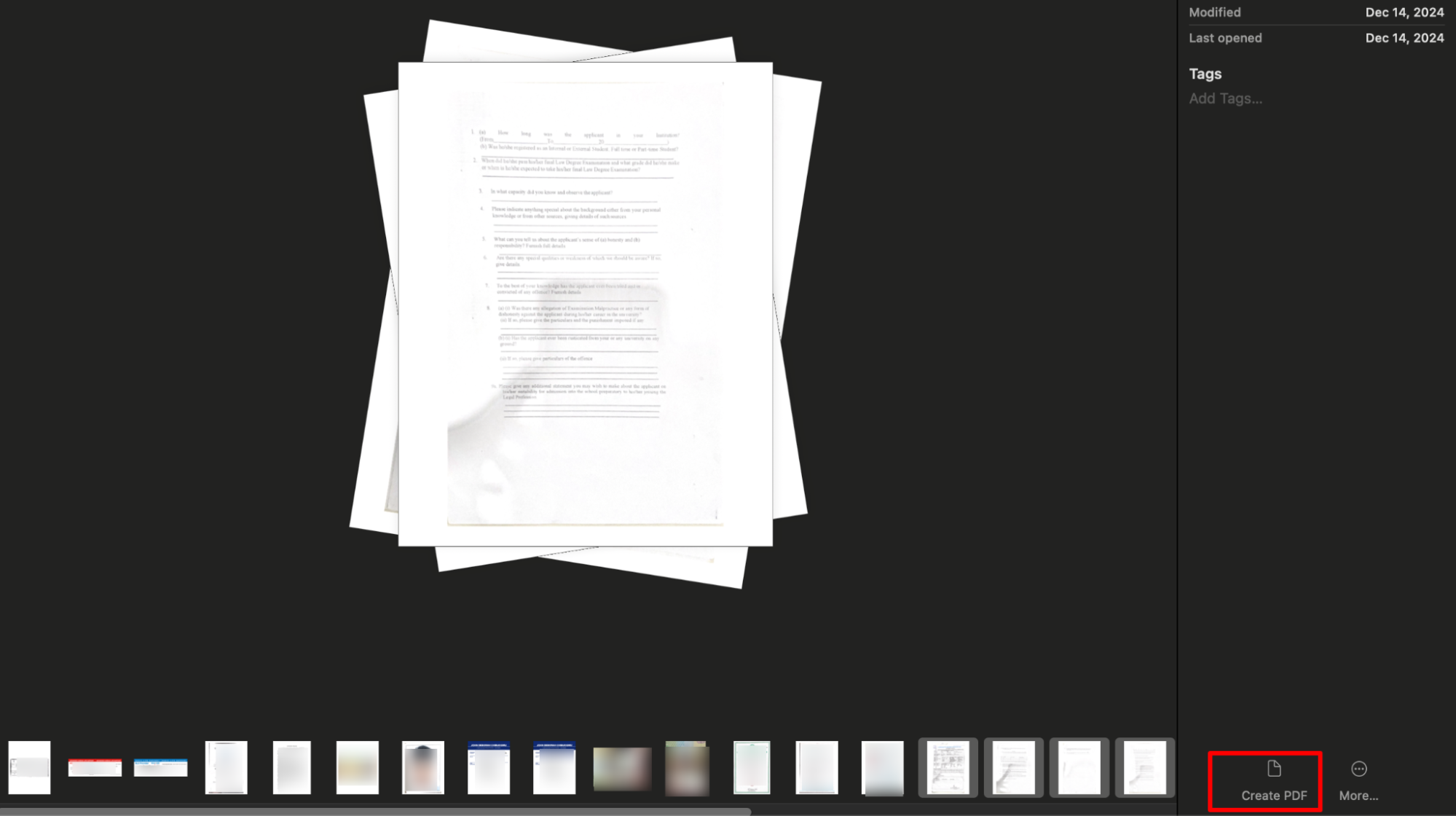
- Click on Create PDF.
- macOS instantly generates a new combined PDF file in the same folder, naming it after the first selected file or appending a numerical sequence.
Arranging and Merging Pages via Preview
For granular control over page order, document rotation, and selective merging, the native Preview app remains the gold standard for everyday Mac users.
- Open your primary PDF document in Preview.
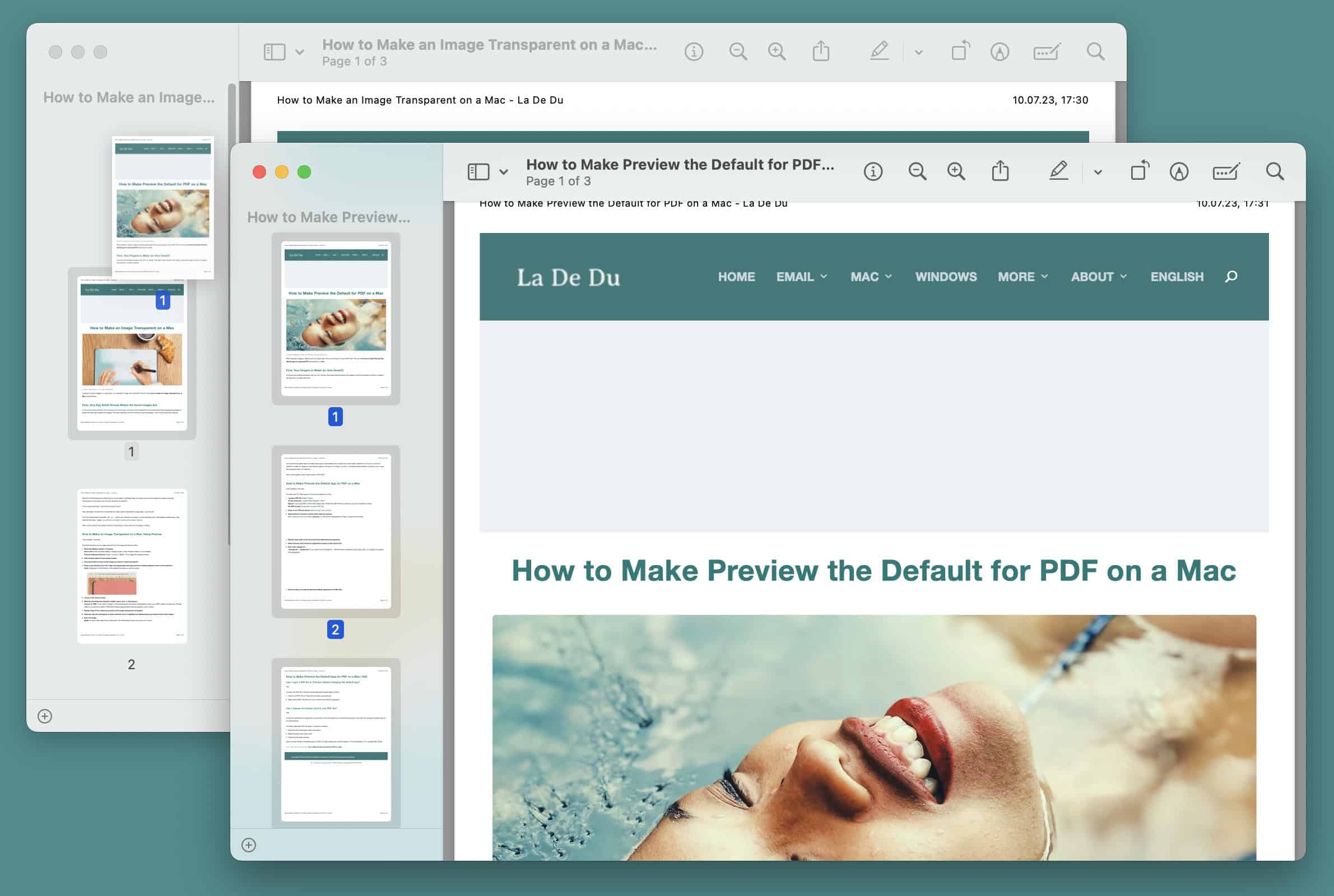
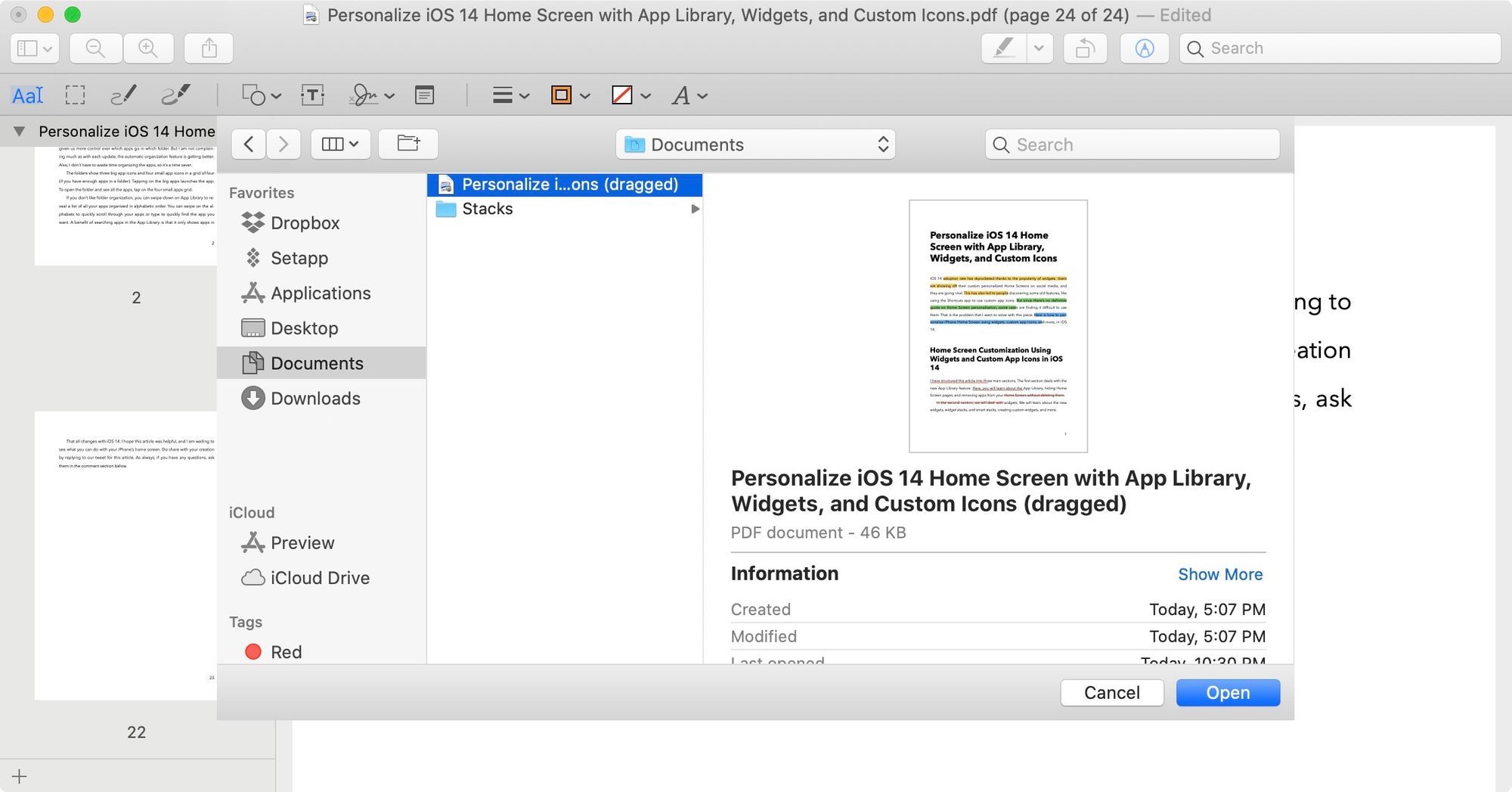
- Navigate to the View menu and select Thumbnails to display the sidebar panel showing every page in the file.
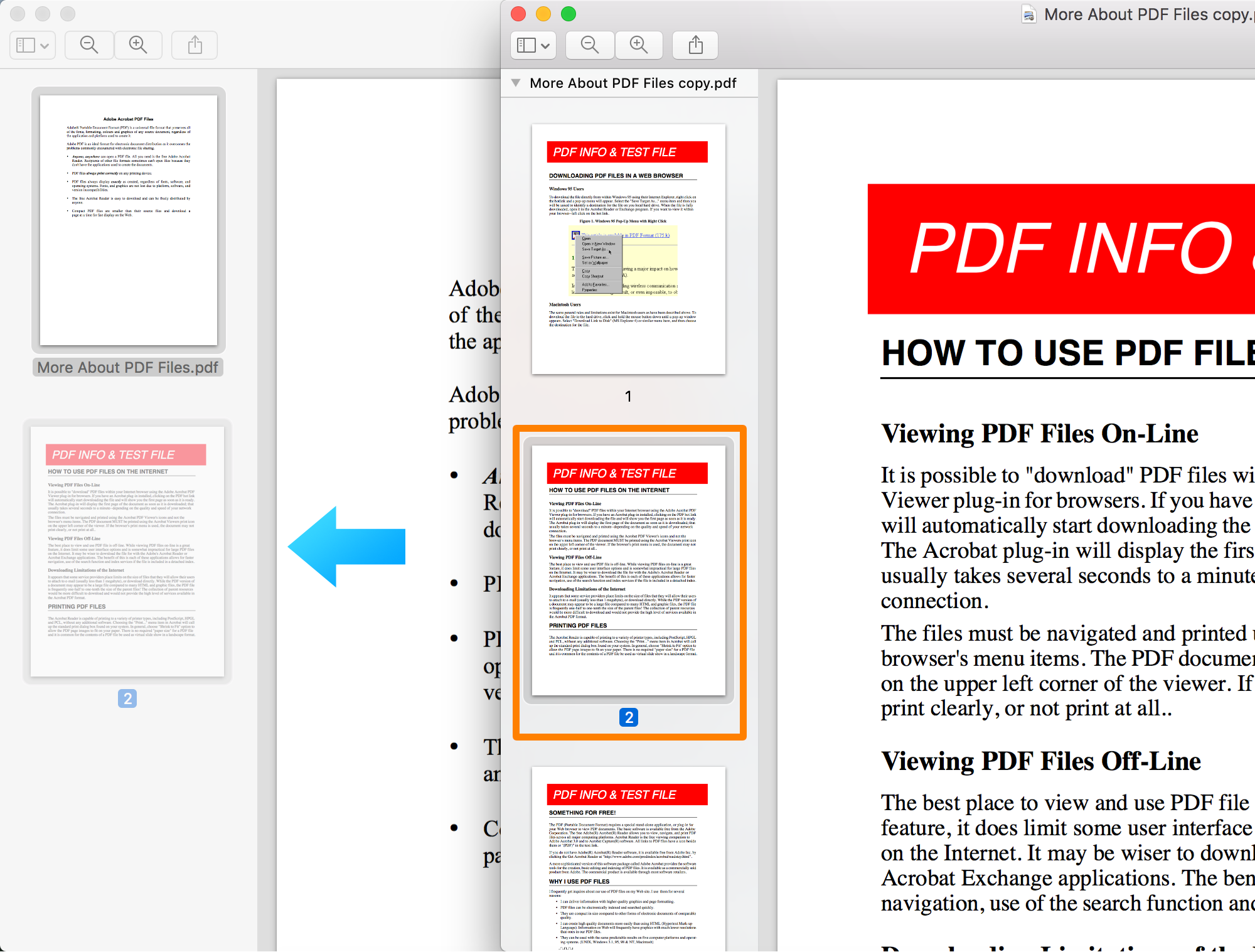
- Drag and drop additional PDF files directly into the thumbnail sidebar at the exact location where you want them inserted. Alternatively, go to Edit, select Insert, and choose Page from File or PDF from File.
- Reorder individual pages or entire multi-page blocks by clicking and dragging thumbnails up or down within the sidebar.
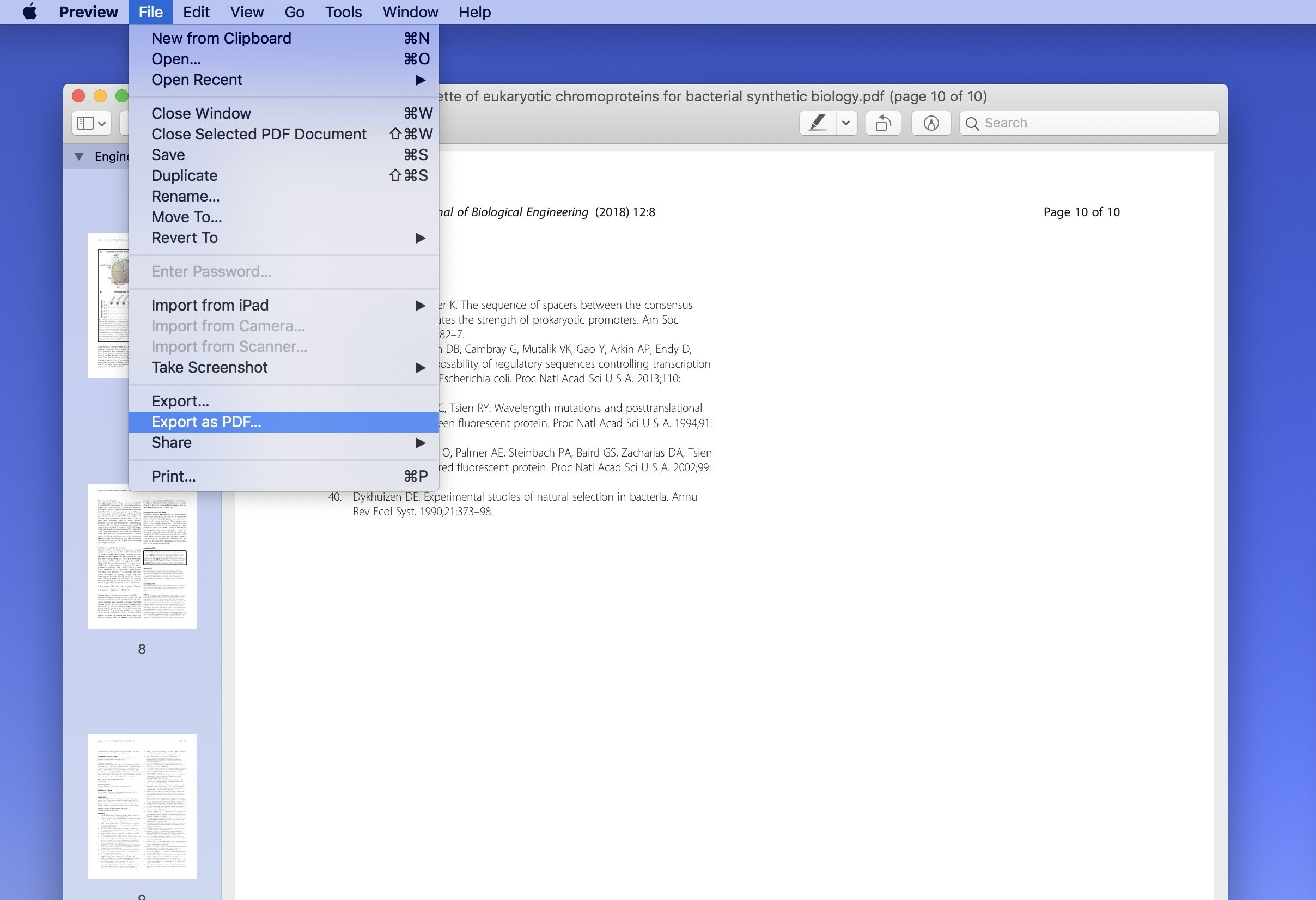
- Save your newly compiled document by pressing Command-S or navigating to File and selecting Export as PDF.
Comparative Analysis of PDF Merging Methods on macOS
Choosing the correct tool depends on your technical depth, volume of files, and specific privacy needs. The following comparison breaks down the primary options available to macOS users in 2026.
| Method / Tool | Technical Complexity | Privacy & Security | Cost | Best Use Case |
|---|---|---|---|---|
| Finder Quick Actions | Extremely Low | 100% Local (Secure) | Free (Built-in) | Quick batch joining of a few straightforward documents. |
| Apple Preview App | Low to Moderate | 100% Local (Secure) | Free (Built-in) | Reordering specific pages, mixing selective layouts, and inserting single files. |
| Terminal / CLI Scripts | Advanced | 100% Local (Secure) | Free (Built-in) | Automated batch processing and developer workflows. |
| Dedicated Desktop Software | Moderate | Varies by Vendor | Paid / Subscription | Advanced enterprise editing, optical character recognition (OCR), and digital signatures. |
Security Advisory: When handling sensitive financial statements, medical records, or proprietary corporate data, always utilize native macOS utilities or trusted offline applications. Web-based PDF mergers upload your private files to remote cloud servers, exposing your data to potential interception or unauthorized retention.
Advanced Workflow: Using Terminal for Batch Processing
For power users and developers managing dozens of documents daily, macOS includes command-line tools capable of automating PDF combinations using the underlying Unix architecture. While Apple has deprecated older tools like textutil for direct PDF manipulation, modern macOS environments support Python scripts utilizing libraries such as pypdf or PyPDF2 installed via Homebrew.
To execute a basic command-line merge using a Python utility installed in your environment, open the Terminal application and navigate to your target directory using the cd command. By running a short script that imports your target files sequentially, you can automate bulk document compilation in a fraction of a second. This method integrates seamlessly into shell scripts and automated folder actions within macOS Automator or Shortcuts.
Pros and Cons of Native macOS PDF Tools
Evaluating the strengths and limitations of built-in Apple solutions helps determine whether you need specialized software or if native tools suffice.
Advantages
- Zero Cost: No subscriptions, hidden fees, or trial limitations.
- Complete Privacy: Files never leave your local solid-state drive, ensuring total compliance with privacy regulations like GDPR and HIPAA.
- No Installation Required: Tools like Preview and Finder are pre-installed on every Mac.
- Speed: Instant processing without uploading or downloading large files over internet connections.
Disadvantages
- Limited Editing: Native tools lack advanced features such as batch OCR, redaction tools, and digital signature verification.
- Rigid Page Management: While Preview handles basic reordering, complex multi-document restructuring with varying page sizes can become cumbersome.
- No Cloud Sync Integration: Manual file management is required to track source files before and after merging.
Frequently Asked Questions
Can I combine PDF files on a Mac without installing third-party software?
Yes, you can easily combine PDF files using the built-in Finder Quick Actions menu or by dragging and dropping pages inside the native Preview application. Both methods are entirely free, secure, and require no software downloads.
How do I change the page order after combining PDFs in Preview?
Simply open the PDF in Preview, ensure the sidebar is set to display thumbnails, and click and drag any page thumbnail to its desired position in the document sequence before saving.
Are online PDF merger tools safe to use?
Online PDF tools require you to upload your documents to external servers, which poses significant security risks for confidential, financial, or personal records. Local offline tools like Preview or Finder are always safer.
Can I merge password-protected PDF files on macOS?
Yes, but you must enter the correct owner or user password for each locked PDF file within Preview before you can successfully integrate and save them into a single unencrypted or newly encrypted document.
What should I do if Preview fails to save the combined PDF?
If Preview encounters a saving error, check your file permissions, ensure you have sufficient free disk space, and try using the Export as PDF function instead of a standard save command to generate a fresh file instance.
Streamline Your Document Management Today
Mastering native macOS document workflows saves valuable time and guarantees absolute data privacy. Whether you utilize Finder Quick Actions for instantaneous assembly or Preview for detailed page curation, managing your files directly on your Mac eliminates unnecessary third-party risks. Implement these techniques today to optimize your digital workspace.