(Note: This article focuses exclusively on the remote access infrastructure, virtual private network protocols, and portal logins for University of Pittsburgh Medical Center [UPMC] employees, clinical staff, and authorized affiliates.)
Navigating the remote access architecture of a major integrated delivery and finance system requires strict adherence to security protocols, multi-factor authentication standards, and standardized endpoint configurations. As of 2026, the University of Pittsburgh Medical Center utilizes advanced identity and access management frameworks to ensure that remote physicians, researchers, nurses, and administrative personnel maintain uninterrupted, HIPAA-compliant access to electronic health records and enterprise resource planning software. Understanding these technical gateways eliminates connection friction, safeguards protected health information, and optimizes daily clinical workflows.
Technical Architecture and Authentication Standards for UPMC Remote Gateways
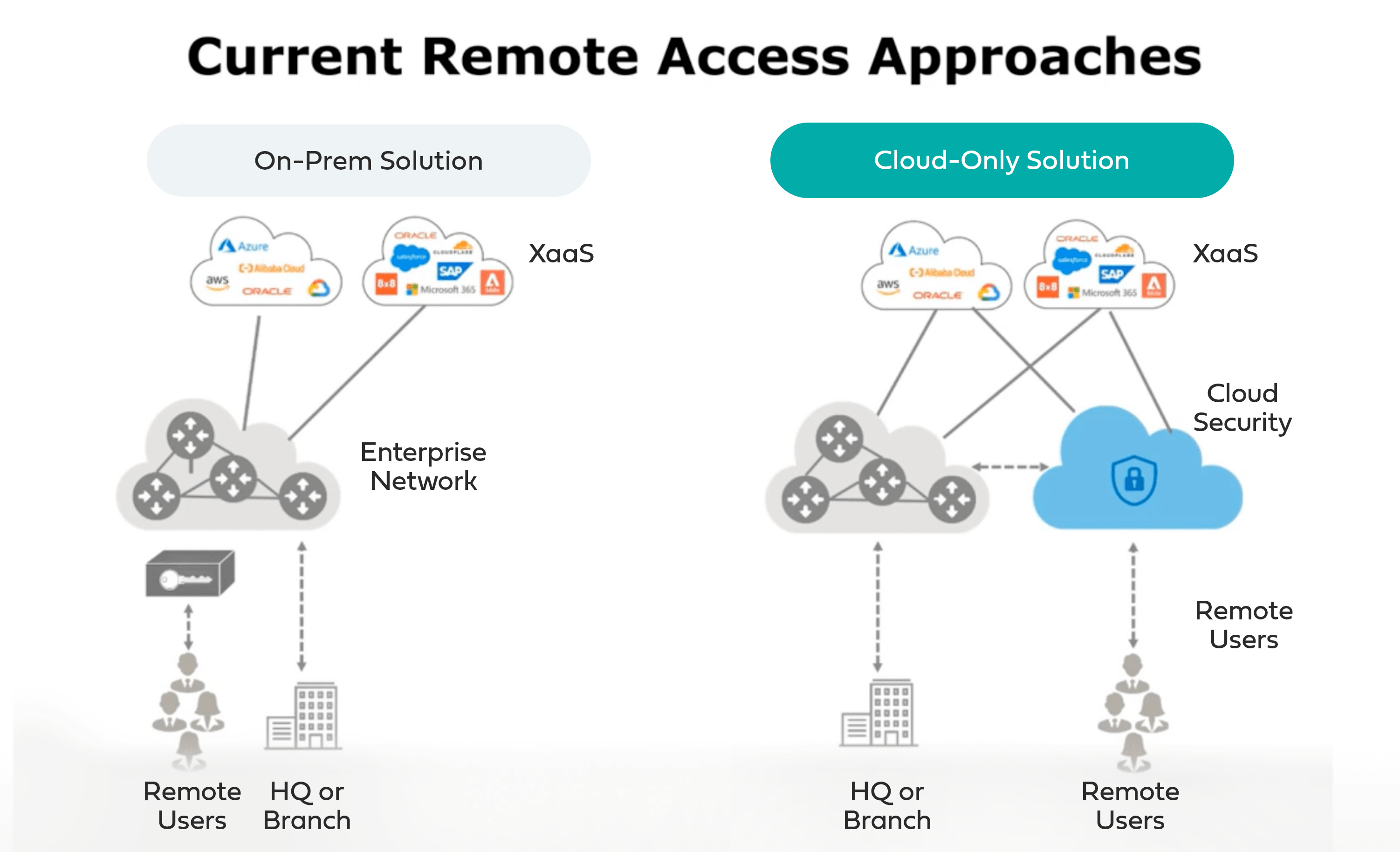
Accessing the UPMC enterprise network remotely involves traversing multiple layers of security designed to mitigate modern cyber threats. The foundation of this architecture rests on zero-trust network access principles, requiring every user and device to undergo rigorous verification before establishing a secure tunnel.
Enterprise users typically interact with specific entry points depending on their organizational status and functional requirements. Clinical staff often rely on virtual desktop infrastructure solutions that host desktop environments securely within UPMC data centers, minimizing data leakage risks on endpoint devices.
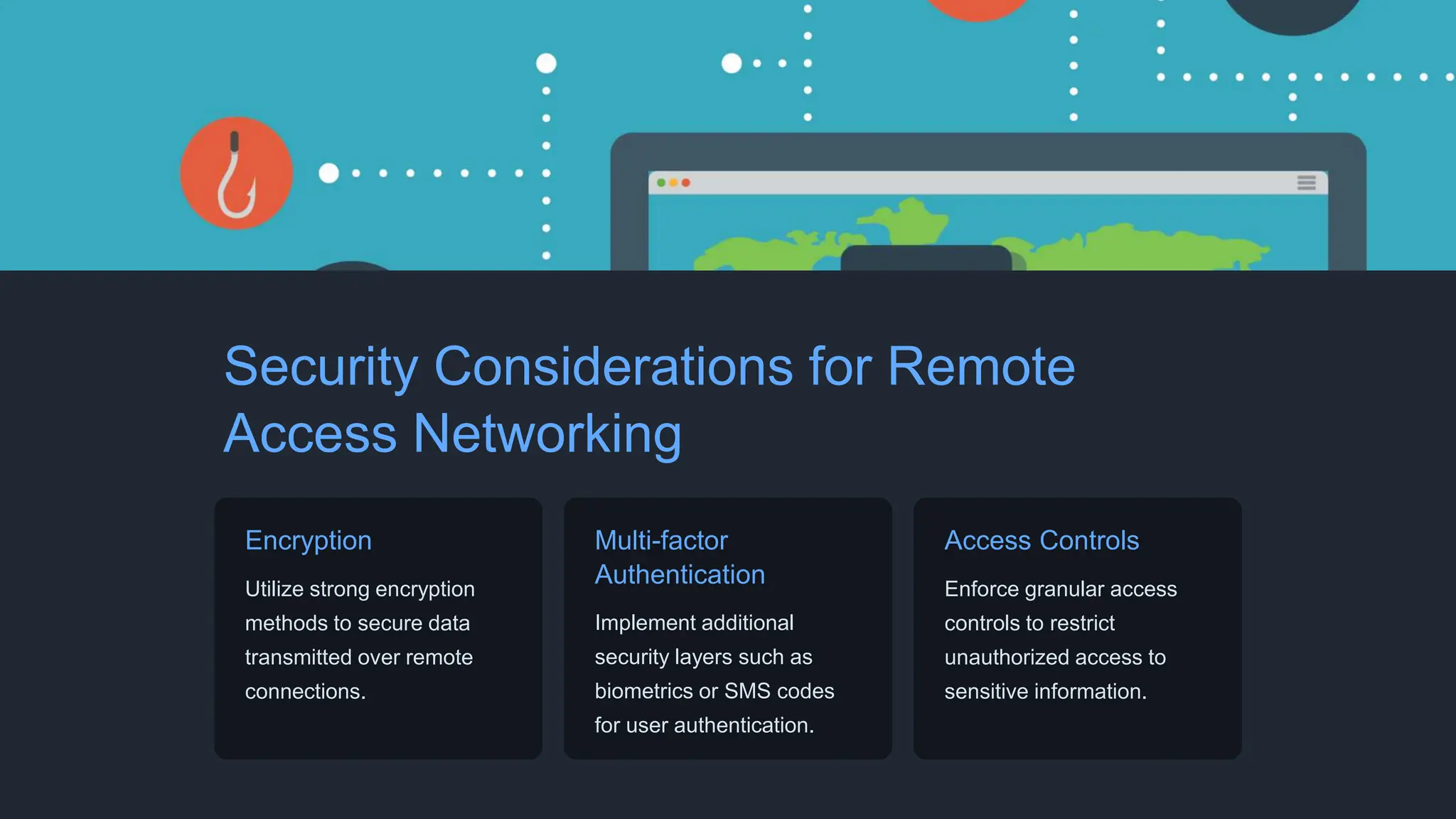
Multi-Factor Authentication Mandate All remote access sessions demand multi-factor authentication utilizing approved authenticator applications or hardware security keys. SMS-based verification is progressively restricted across healthcare networks due to interception vulnerabilities, making push-notification tokens and time-based one-time passwords the mandatory standard for 2026 operations.
Core Component Overview for Remote Access
| Gateway Component | Primary Function | Target User Group | Security Protocol |
|---|---|---|---|
| Virtual Private Network (VPN) | Encrypted network-level tunneling | IT Administrators, Advanced Researchers | TLS 1.3 / AES-256 |
| Virtual Desktop Infrastructure (VDI) | Hosted desktop environment execution | Physicians, Nurses, Clinical Staff | PCoIP / Secure ICA |
| Web-Based Enterprise Portal | Single sign-on application launcher | Administrative Staff, General Employees | SAML 2.0 / OAuth 2.0 |
| Clinical Mobile Gateway | Smartphone/tablet application tunnel | Mobile Care Teams | Certificate-Based MDM |
Step-by-Step Connection Guide for UPMC Employees and Affiliates
Establishing a stable connection to the UPMC network requires a systematic approach to endpoint preparation, software installation, and credential validation. Whether logging in from a personal home office or an authorized mobile device, adhering to the prescribed configuration sequence prevents authentication lockouts.
- Verify Endpoint Compliance: Ensure your operating system and antivirus definitions meet minimum UPMC Information Technology security baselines. Unmanaged personal devices may require the installation of specific endpoint management agents.
- Launch the Approved Client: Open the designated UPMC secure portal or enterprise client application installed on your workstation. Avoid navigating through unverified search engine links to prevent phishing exposure.
- Enter Enterprise Credentials: Input your assigned UPMC user ID and network password in the corresponding fields. Ensure proper formatting, keeping user suffixes aligned with your specific subsidiary or hospital division.
- Complete Multi-Factor Authentication: Respond to the push notification sent to your registered authenticator device or input the current time-based verification code.
- Verify Workspace Initialization: Upon successful authentication, verify that your virtual desktop session or network drive mapping renders correctly before accessing patient-facing applications or administrative databases.
Troubleshooting Common Remote Access Failures
Technical impediments during remote login routines frequently stem from expired credentials, outdated client software, or network packet drops. Addressing these issues efficiently requires a systematic review of error logs and network parameters.
- Credential Synchronization Errors: If your network password was recently updated on an in-person workstation, ensure that remote portals are not attempting authentication with cached legacy credentials.
- Client Version Mismatch: UPMC regularly updates its gateway software to patch vulnerabilities and enhance compatibility. Outdated VPN or VDI clients will frequently drop connection handshakes automatically.
- Certificate Authority Warnings: Never bypass browser security warnings regarding invalid SSL certificates when attempting to reach internal UPMC domains. These alerts typically indicate network interception or misconfigured local time settings.
- ISP Routing and Latency: High packet latency can cause virtual desktop sessions to freeze or disconnect abruptly. Transitioning from congested wireless networks to hardwired Ethernet connections often stabilizes interactive clinical applications.
Comparative Analysis of UPMC Remote Access Methods
Selecting the appropriate connection pathway depends on the specific operational tasks required during a remote shift. The following comparison highlights the primary operational distinctions between available access modalities.
| Access Modality | Setup Complexity | Performance on High Latency | Ideal Use Case |
|---|---|---|---|
| Enterprise VDI Client | Moderate | Excellent | Full Electronic Health Record (EHR) Documentation |
| Web Portal SSO | Low | Good | Email, HR Management, Learning Modules |
| Network VPN Tunnel | High | Moderate | Advanced Data Analysis, IT System Administration |
| Mobile MDM Gateway | Low | Good | Secure Messaging and Quick Patient Chart Review |
Frequently Asked Questions Regarding UPMC Remote Connectivity
How do I reset my UPMC network password if I am locked out while working remotely?
Users can utilize the automated UPMC Self-Service Password Management portal from any connected device to securely update credentials without contacting the IT service desk. If your account is completely locked due to multiple failed attempts, contacting the internal enterprise help desk via your designated regional phone line is required.
Can I access UPMC remote portals from a personal, unmanaged computer?
Certain web-based administrative tools and virtual desktop sessions permit access from personal devices provided they meet strict endpoint security checks and compliance policies. However, high-privilege administrative functions and direct VPN tunneling typically require institutionally provisioned hardware.
Why does my multi-factor authentication prompt fail to arrive on my phone?
This issue is usually caused by unstable cellular or Wi-Fi data connectivity on your mobile device, or background app refresh restrictions. Ensure your authenticator application has permission to run background processes and check that your device is not operating in a restricted focus mode.
What should I do if my virtual desktop session freezes mid-documentation?
Avoid immediately forcing a hard shutdown of your local computer, as this can corrupt open application states. Instead, close the virtual client window gracefully, wait approximately sixty seconds for the host server to terminate the orphaned session, and then re-initiate your login sequence.
Are there specific geographic restrictions for accessing the UPMC network remotely?
For security and compliance reasons, remote connections originating from outside approved international jurisdictions may be automatically blocked by edge firewalls. Employees traveling internationally should coordinate with UPMC IT security well in advance to establish authorized exceptions.
Who should I contact for persistent technical support regarding remote access?
Technical support inquiries should be directed to the UPMC IT Service Desk through your facility's designated internal ticketing system or support hotline. Keep detailed notes of any error codes received to accelerate troubleshooting resolutions by network engineers.
Securing Your Remote Enterprise Environment
Maintaining the integrity and security of the UPMC digital ecosystem is a shared responsibility among all authorized users. By strictly following mandated multi-factor authentication procedures, keeping endpoint software updated, and utilizing designated virtual desktop pathways, clinical and administrative personnel ensure uninterrupted patient care delivery across all operational footprints. For immediate technical assistance or specialized hardware requests, consult the internal UPMC intranet portal for current support ticket submission forms and help desk extensions.