The term Kool.com frequently relates to web-based account management services, primarily within the telecommunications and high-speed fiber internet sector. This guide focuses specifically on the secure login procedures for Kool.com internet and connectivity services as of 2026.
Managing your fiber connectivity requires a secure, authenticated session. Ensuring you are accessing the legitimate portal is the first step toward maintaining network integrity and protecting your account credentials.
Verifying the Authenticity of the Kool.com Portal
In 2026, cybersecurity remains a top priority for all internet service providers. Users seeking the Kool.com login page must distinguish between official service portals and phishing attempts designed to harvest credentials. Always verify the Uniform Resource Locator (URL) in your browser address bar before inputting your username or password.
Official portals utilize Extended Validation (EV) SSL certificates. You can confirm this by clicking the padlock icon in your browser to inspect the certificate details, ensuring they are issued to the correct corporate entity. Never access your account via links provided in unsolicited emails or text messages, as these are common vectors for credential theft.
Step-by-Step Account Access Workflow
Accessing your profile is a straightforward process when following standard security protocols. If you are an existing customer, follow these steps to reach your dashboard:
- Navigate to the official domain: Ensure the address begins with https://www.kool.com.
- Locate the Login Button: Typically positioned in the top-right corner of the primary navigation bar.
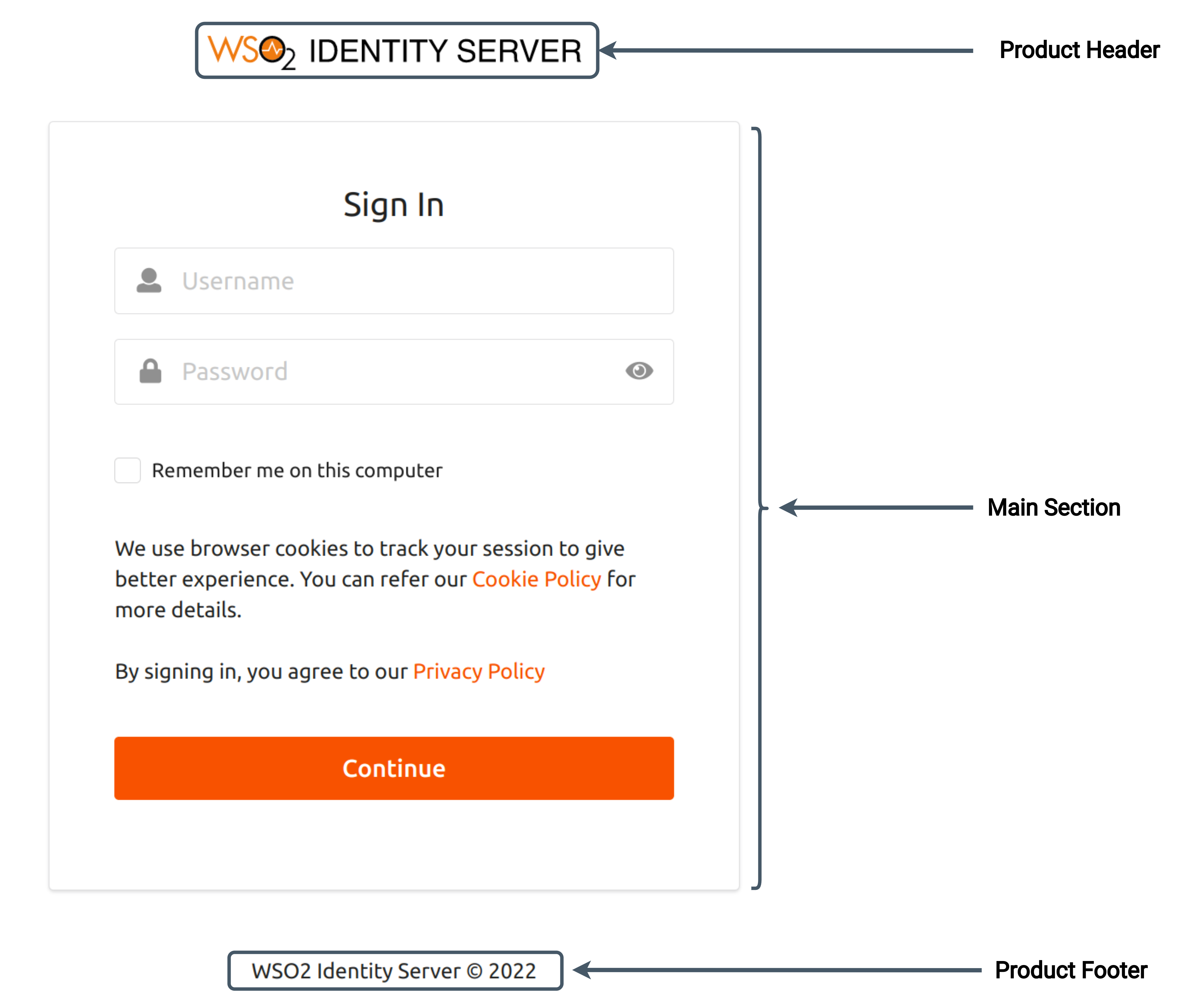
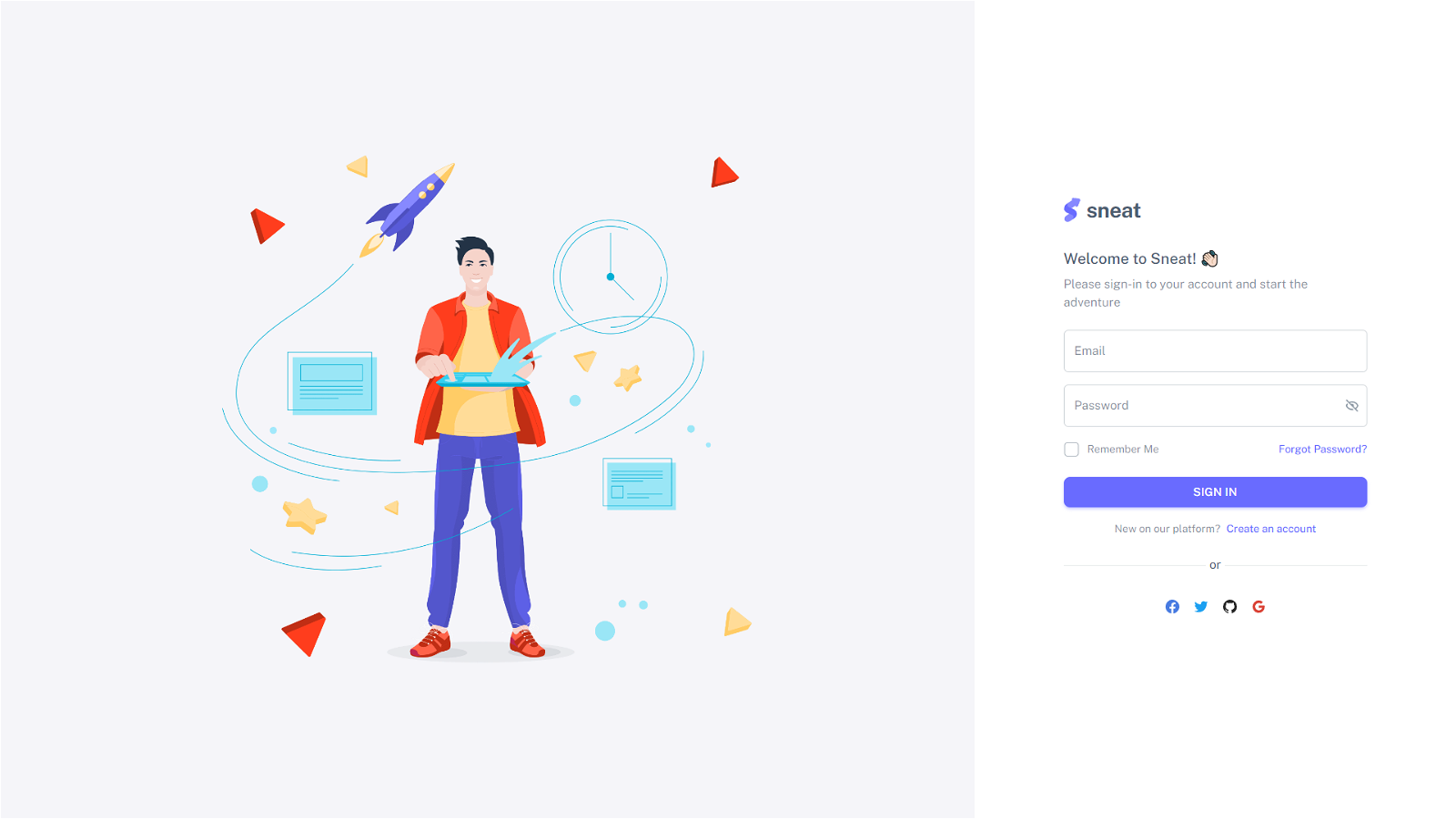
- Input Credentials: Enter your registered email address and the password associated with your account.
- Multi-Factor Authentication (MFA): Once your credentials are verified, you will be prompted for an MFA code sent to your registered mobile device or secondary email.
- Session Initiation: After the second-factor verification is successful, your account dashboard will load, displaying your current billing status, data usage, and service configuration.
Security Recommendations for 2026
Password Complexity: We strongly recommend using a unique, randomized password generated by a trusted password manager. Avoid recycling passwords from other platforms, as credential stuffing remains a prevalent threat to consumer accounts this year.
MFA Enforcement: If your account settings allow it, prioritize Time-based One-Time Password (TOTP) applications over SMS-based verification, as app-based MFA is significantly more resistant to SIM-swapping attacks.
Common Troubleshooting and Login Failure Remedies
If you encounter difficulties accessing the portal, they are frequently related to browser caching issues or network-side authentication errors. Before contacting support, perform the following troubleshooting sequence:
- Clear Browser Cache and Cookies: Corrupt local data can prevent the session token from being stored or validated correctly.
- Update Browser Versions: Ensure your browser (Chrome, Edge, Safari, or Firefox) is running the most current version released in 2026 to ensure compatibility with the latest security handshakes.
- Disable VPNs: Sometimes, security software or Virtual Private Networks can trigger the portal's geofencing or anti-bot heuristics, causing the login page to reject the request.
- Check Service Status: If the portal is unresponsive, visit the official system status page to see if there are known maintenance windows or regional outages affecting your area.
Feature Comparison of Account Management Portals
The following table compares the essential functions available within the 2026 version of the Kool.com dashboard versus standard guest-level access.
| Feature Category | Account Dashboard Access | Guest/Public Access |
|---|---|---|
| Billing & Payment History | Fully Accessible | Unavailable |
| Real-time Data Usage | Detailed Analytics | Unavailable |
| Technical Support Ticketing | Priority Queue | Standard Inquiry Form |
| Firmware Management | Full Control | Restricted |
| Profile & Security Settings | Modifiable | Unavailable |
Understanding Service Level Agreements and Performance Benchmarks
For users managing business-grade connectivity through the Kool.com portal, understanding the backend metrics is vital for maintaining uptime. In 2026, the industry standard for high-speed fiber providers involves 99.99% uptime guarantees. Your dashboard provides a granular view of your connection's latency, jitter, and packet loss statistics.
If you notice a deviation in these metrics—specifically if latency exceeds 50ms consistently or if packet loss is detectable—it is recommended that you log in to the portal to run a self-diagnostic test. These tools are integrated directly into the account management interface to allow for remote hardware resetting without the need for a technician visit, saving time and potential service fees.
Frequently Asked Questions Regarding Account Access
Why am I receiving an error message when trying to reset my password?
This often occurs if the email address entered does not match the one on file or if the account has been temporarily locked due to excessive failed login attempts. Verify that you are using the primary email address linked to your service contract and wait 30 minutes before attempting another reset.
Is the Kool.com login page mobile-responsive?
Yes, the 2026 portal is fully optimized for mobile devices, allowing you to manage your internet services through any smartphone browser. There is no requirement for a dedicated app, though using a secure mobile browser is recommended for transaction safety.
What should I do if I suspect my account has been compromised?
Immediately navigate to the account security tab to terminate all active sessions, then change your password and ensure that your MFA settings have not been altered by an unauthorized party. Following this, contact the support team through the official portal to initiate a security audit of your account.
Are there specific browser requirements for the dashboard?
The platform is built on modern web standards (HTML5/CSS3) and functions optimally on the latest stable releases of Chrome, Safari, and Firefox. Ensure JavaScript is enabled, as the dashboard's interactive features depend on it to function correctly.
Can I manage multiple accounts under one login?
Users with multiple properties or service subscriptions can link multiple accounts to a single primary dashboard login. This is done under the 'User Management' or 'Account Linking' section within your profile settings once you have successfully authenticated.
Final Steps for Secure Account Management
Maintaining control of your digital account is a shared responsibility between the service provider and the subscriber. By adhering to the 2026 security guidelines—utilizing MFA, avoiding public Wi-Fi for account management, and regularly auditing your connected devices—you ensure that your experience remains seamless. Should you require further assistance beyond the scope of this portal guide, utilize the authenticated support ticketing system within your dashboard to ensure your concerns are routed to the appropriate technical tier.