The Windows 11 2025 Update, technically designated as version 24H2, represents the most significant architectural shift for the operating system since its initial release. This update serves as the definitive standard for modern computing in 2026, introducing deep AI integration, improved kernel security, and essential support for the Wi-Fi 7 wireless standard.
Understanding the Scope of the 2025 Update Cycle
As we navigate through 2026, the 2025 update (version 24H2) has transitioned from a new release to the baseline operating environment for both enterprise and consumer hardware. Unlike previous incremental patches, this update was a "full OS swap," meaning the entire Windows core was replaced during the installation process rather than just updated. This approach allowed Microsoft to introduce foundational changes that were previously impossible, such as the integration of Rust code into the Windows kernel for enhanced memory safety.
The update’s importance was magnified by the Windows 10 End of Support milestone on October 14, 2025. This event forced a global migration toward Windows 11, making the 2025 update the target version for hundreds of millions of transitioning systems. For users and IT administrators in 2026, understanding the nuances of this build is critical for maintaining system stability, security, and performance.
The 2025 update also solidified the "AI PC" category. Systems equipped with dedicated Neural Processing Units (NPUs) gained access to exclusive features like Recall (in its revised, security-hardened form), Cocreator in Paint, and advanced Windows Studio Effects. For hardware without an NPU, the update still delivered substantial performance improvements through the new "Prism" emulation layer, which significantly boosted efficiency on ARM-based devices.
Key Features and Technical Enhancements
The 2025 update introduced several transformative features that have redefined the user experience. These are not merely aesthetic changes but functional improvements designed to streamline workflows and modernize the legacy elements of Windows.
Native Sudo for Windows
One of the most praised additions for developers and power users was the introduction of a native Sudo for Windows. Accessible via the Settings app, this feature allows users to run elevated commands directly from an unelevated console session (such as PowerShell or Command Prompt). This eliminates the need to open a separate "Administrator" window for simple tasks like directory modifications or system configuration changes, mirroring a workflow long cherished in Linux environments.
Enhanced File Explorer and Archive Support
The 2025 update finalized the integration of high-performance archive formats. Users can now natively create and extract 7z and TAR files directly within File Explorer without requiring third-party utilities like WinRAR or 7-Zip. Additionally, the File Explorer UI was refined to improve context menu performance, which had been a point of contention in earlier Windows 11 builds.
Energy Saver and Battery Management
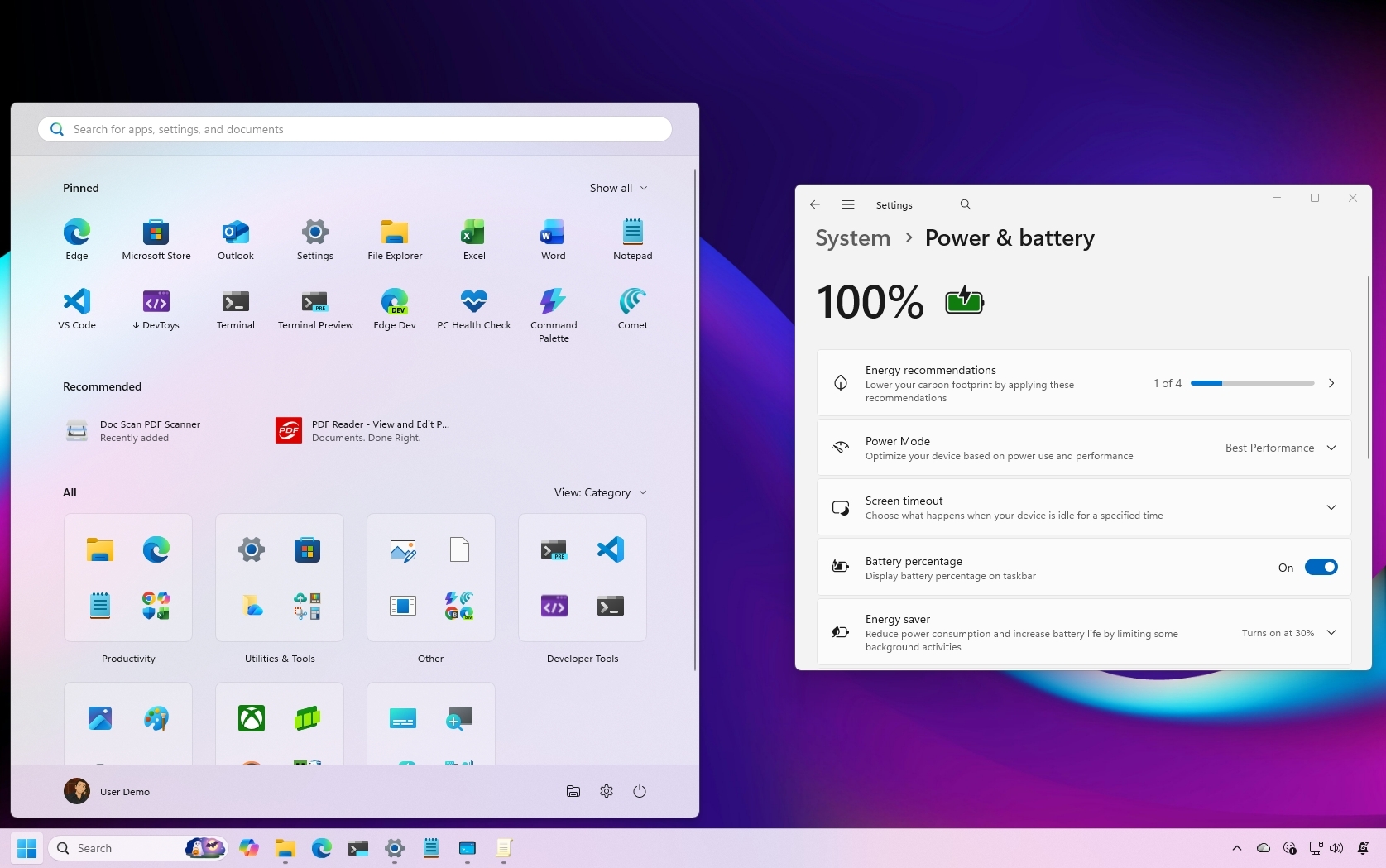
To combat the rising energy demands of modern software, Microsoft introduced a unified Energy Saver mode. This feature replaces the older "Battery Saver" and extends its functionality to desktop PCs (which do not have batteries). It works by reducing system energy consumption through the optimization of background processes and the adjustment of transparency effects, providing a crucial tool for users looking to reduce their carbon footprint or lower electricity costs.
Wi-Fi 7 and Bluetooth LE Audio
On the connectivity front, the 2025 update brought official support for Wi-Fi 7. This allows compatible hardware to utilize the 6 GHz band with wider channels and multi-link operation (MLO), drastically reducing latency and increasing throughput. Furthermore, the update expanded support for Bluetooth LE Audio, enabling high-quality audio streaming with lower power consumption and support for hearing aids.
Hardware Requirements and Compatibility Standards
The 2025 update enforced stricter hardware requirements compared to previous versions. In 2026, these requirements are the primary filter for system longevity. If a device does not meet these specifications, it is effectively excluded from the modern Windows ecosystem.
| Component | Minimum Requirement for 2025 Update | AI PC Enhanced Requirements |
|---|---|---|
| Processor | 1 GHz or faster, 2+ cores, 64-bit (SSE4.2 required) | 40+ TOPS NPU (Snapdragon X, Intel Lunar Lake, AMD Strix Point) |
| Memory (RAM) | 4 GB (8 GB highly recommended) | 16 GB DDR5 or LPDDR5x |
| Storage | 64 GB or larger SSD | 256 GB+ NVMe Gen 4 SSD |
| Firmware | UEFI, Secure Boot capable | UEFI with Pluton Security Processor |
| TPM | Trusted Platform Module (TPM) version 2.0 | TPM 2.0 (Integrated or Discrete) |
| Graphics | DirectX 12 compatible with WDDM 2.0 | DirectX 12 Ultimate with NPU integration |
A critical technical hurdle introduced in this cycle was the requirement for the SSE4.2 instruction set (and specifically the PopCnt instruction). Older processors from the pre-2010 era that were previously able to "bypass" Windows 11 requirements through registry hacks found themselves completely unable to boot the 2025 update. This was a deliberate move to ensure that the kernel's new security features and AI-driven processes could operate on modern instruction architectures.
Deployment Strategies and Installation Paths
For those still managing fleets of devices or personal upgrades in 2026, the installation path for the 2025 update depends on the current state of the machine. Because this is a full OS swap, the process is more resource-intensive than a standard cumulative update.
- Windows Update (Standard Path): This is the most common method. The update appears as a "Feature Update" in the settings menu. It involves downloading a multi-gigabyte package, followed by a lengthy installation phase that includes several restarts.
- Windows 11 Installation Assistant: For users whose systems are eligible but haven't yet seen the update in the standard menu, this tool forces the upgrade. It is the preferred method for "in-place" upgrades where user files and applications must remain intact.
- ISO and Media Creation Tool: Essential for clean installations. This method is recommended for systems experiencing performance degradation or "bloatware" issues. A clean install using the 2025 Update ISO ensures that the new Rust-based kernel components are deployed on a fresh file system.
- Enterprise Deployment (Intune/WSUS): IT administrators typically deploy this update via Microsoft Intune or Windows Server Update Services. Given the "full OS swap" nature, bandwidth management is a priority, often requiring Delivery Optimization (DO) to prevent network congestion.
Post-2025 Support Landscape: The End of Windows 10
The most significant contextual factor of the 2025 update is its role as the primary successor to Windows 10. With the October 14, 2025, end-of-support date now in the past, any Windows 10 machine still in operation in 2026 is a significant security risk.
Microsoft has provided an Extended Security Update (ESU) program for Windows 10, but this is a paid subscription intended strictly as a bridge for organizations that cannot migrate their legacy software immediately. For everyone else, the 2025 update (Windows 11 24H2) is the mandatory destination. The transition has brought several legacy features to their final retirement, including WordPad and the legacy Windows Speech Recognition, both of which have been replaced by more modern, AI-powered equivalents like Microsoft Word and Voice Access.
Common Troubleshooting and Performance Optimization
Despite its stability, the 2025 update introduced specific challenges due to its architectural changes. Users in 2026 frequently encounter issues related to driver compatibility and "ghosting" of legacy settings.
- Driver Migration: Because the OS is swapped, third-party drivers (especially for specialized audio equipment or older printers) may fail to migrate correctly. The first step in troubleshooting any post-update instability should be a manual check of the manufacturer's website for "Windows 11 2025 Update" or "24H2" certified drivers.
- VBS and HVCI Performance: Virtualization-Based Security (VBS) and Hypervisor-Enforced Code Integrity (HVCI) are enabled by default in the 2025 update. While these provide immense security benefits, they can cause a 5-10% performance hit in certain gaming scenarios on older CPUs. Users may choose to toggle these off in the Core Isolation settings, though this is not recommended for general use.
- Disk Space Recovery: After a successful installation, Windows keeps a copy of the previous version in a folder named
Windows.old. This can occupy 20-30 GB of space. If the system is running smoothly, users should use the Storage Sense utility or "Disk Cleanup" (Clean up system files) to remove this data and reclaim storage.
FAQ
How do I check if I am running the 2025 update?
You can verify your version by typing winver in the Start menu search bar and pressing Enter. A dialog box will appear showing your version number. If it says "Version 24H2" or higher, you are running the 2025 update cycle builds. In 2026, most systems should ideally be on this version or its successor to ensure they receive the latest security patches.
Is the 2025 update free?
Yes, the update is free for all existing Windows 11 users and for users of Windows 10 who have compatible hardware. However, if you are upgrading from Windows 10 after the October 2025 support deadline, you must ensure your hardware meets the stricter TPM 2.0 and CPU requirements, as there are no longer official "workarounds" supported by Microsoft.
Can I uninstall the 2025 update if it causes issues?
Windows provides a 10-day rollback window after the installation. During this period, you can go to Settings > System > Recovery and select "Go back." This will restore your previous version of Windows. After 10 days, the recovery files are automatically deleted to save space, and a full reinstallation would be required to downgrade.
Why is my PC not seeing the 2025 update?
The most common reason is hardware incompatibility, specifically the lack of TPM 2.0 or an unsupported processor. Additionally, Microsoft often places "compatibility holds" on certain hardware configurations known to have issues with the update (such as specific SSD models or anti-cheat software conflicts). Check the Windows Release Health dashboard for a list of current known issues.
Does the 2025 update remove my files?
No, a standard "Feature Update" via Windows Update is designed to keep your files, applications, and settings intact. However, because this update involves a deep kernel replacement, it is strongly recommended to back up critical data to an external drive or cloud service (like OneDrive) before beginning the installation.
Final Recommendations for 2026
In the current landscape of 2026, the Windows 11 2025 Update (24H2) is no longer an optional "extra" but a mandatory standard for security and software compatibility. For individual users, the priority should be ensuring that hardware remains within the supported envelope; if your device is aging, 2026 is the ideal time to transition to a Copilot+ PC that can fully leverage the NPU-based features introduced in this update cycle.
For IT professionals, the focus must remain on auditing any remaining Windows 10 instances. With the 2025 support cutoff having passed, migrating those systems to the 24H2/25H2 baseline is the only way to maintain compliance and defense against modern exploits. Utilize tools like the Windows Assessment and Deployment Kit (ADK) to streamline these transitions and ensure that your organization is not paying unnecessary ESU fees for outdated software.