This article pertains exclusively to the UPMC patient portal. If you are seeking information regarding UPMC Health Plan member portals or MyUPMC physician-facing credentialing, please note that these are distinct platforms requiring separate authentication credentials.
Understanding the MyUPMC Portal Infrastructure
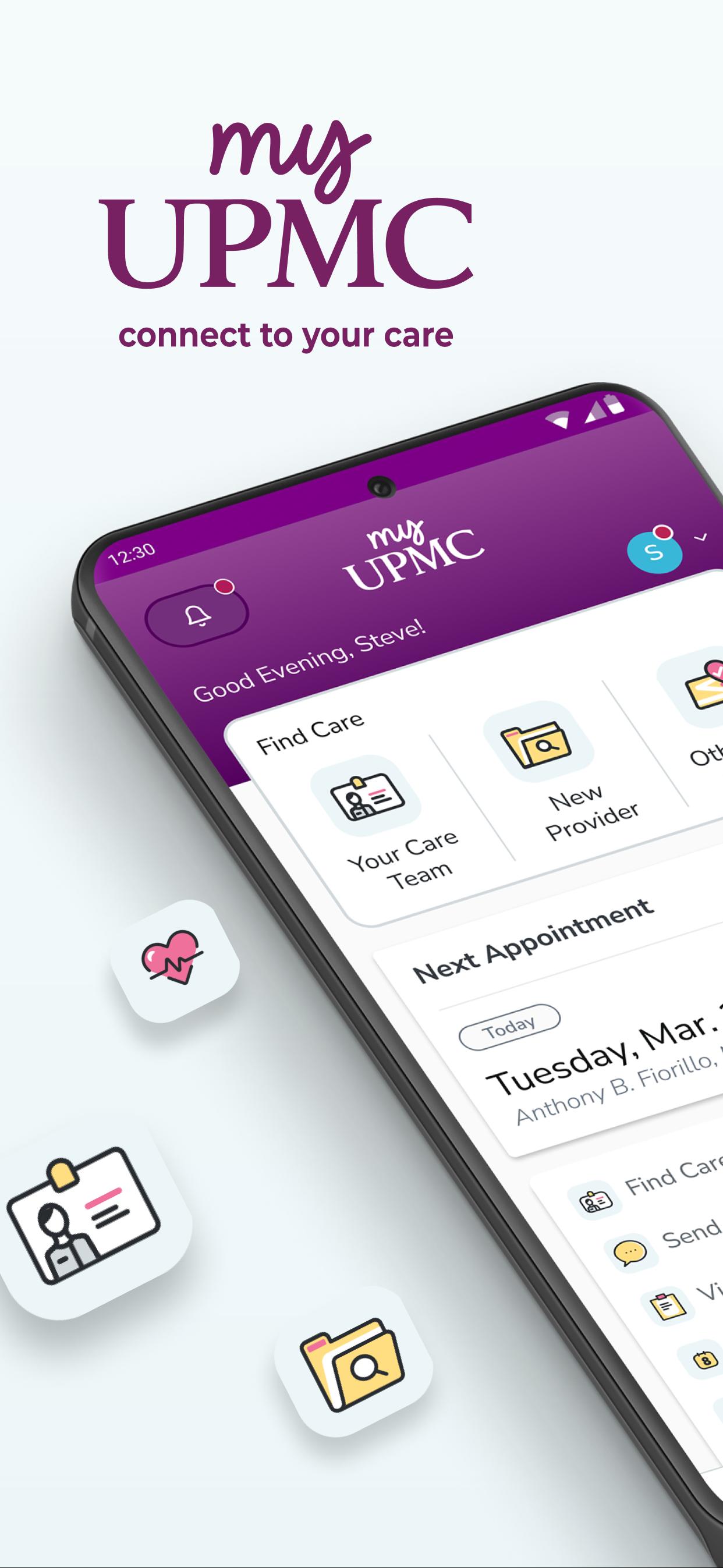
The MyUPMC portal serves as the centralized digital ecosystem for patients within the University of Pittsburgh Medical Center network. As of 2026, the interface has been optimized to integrate real-time electronic health record (EHR) data with secure messaging, appointment scheduling, and integrated billing services. Unlike fragmented legacy systems, MyUPMC utilizes a unified identity provider service, ensuring that your medical history, laboratory results, and prescription management are synchronized across all UPMC-affiliated hospitals and outpatient clinics.
Accessing this portal requires adherence to strict cybersecurity protocols. UPMC utilizes multi-factor authentication (MFA) to mitigate risks associated with credential harvesting. Users must ensure that the device they are using is running updated operating systems, as legacy browsers may be blocked from the portal to protect patient privacy in accordance with 2026 Health Insurance Portability and Accountability Act (HIPAA) technical safeguards.
Step-by-Step Guide to Secure Account Authentication
To successfully access your MyUPMC account, follow this technical procedure to ensure your connection remains encrypted and authenticated.
- Navigate directly to the official MyUPMC web domain. Verify the URL string starts with the secure HTTPS protocol to ensure the site's SSL/TLS certificate is valid.
- Enter your unique username and password. If you have forgotten your credentials, utilize the "Forgot Password" self-service tool, which requires verification through your registered email or phone number.
- Complete the MFA challenge. Depending on your configuration, this may involve a push notification via the MyUPMC mobile app, an SMS-based security code, or an email verification link.
- Upon successful entry, confirm your session dashboard reflects your current primary care provider and linked UPMC facility.
Privacy Warning for Shared Devices If you are accessing your medical records from a public or shared computer, always utilize an Incognito or Private browsing window. Ensure that the 'Remember Me' function is disabled, and explicitly log out of your session rather than simply closing the browser tab. This prevents session token hijacking and ensures your Protected Health Information (PHI) remains inaccessible to subsequent users of that terminal.
Managing Health Data and Operational Features
The 2026 version of the portal includes enhanced data transparency features. Patients can view detailed billing statements, request prescription refills, and review historical diagnostic imaging reports directly within the interface. Below is a breakdown of the core functionalities available to patients.
| Feature Category | Capability Description | Operational Frequency |
|---|---|---|
| Appointment Management | Real-time scheduling with UPMC specialists | 24/7 Availability |
| Lab/Diagnostic Reports | Immediate release of test results | As processed by lab |
| Prescription Refills | Digital request to pharmacy partner | 2-3 Business Days |
| Billing & Payments | View itemized statements and pay via EFT | Monthly / Per Encounter |
| Medical History | Unified view of chronic conditions | Continuous sync |
Navigating UPMC Network Insurance and Provider Relationships
Understanding which services are covered within your MyUPMC dashboard is essential for financial planning. In 2026, UPMC maintains a complex network of providers, but access to these providers is contingent upon your specific insurance plan's "in-network" status.
- Commercial Insurance: Most UPMC facilities are in-network for major carriers like UPMC Health Plan, Highmark, and various national PPO/HMO plans.
- Medicare Advantage: UPMC typically accepts UPMC for Life (Medicare Advantage) plans. However, coverage for other regional or national Medicare Advantage plans varies by specific facility and provider contract.
- Traditional Medicare: Most UPMC clinical locations accept Traditional Medicare Part B. Always verify your specific plan status via the "Coverage" tab in your portal before scheduling non-emergent procedures.
- Provider Credentials: The "Find a Doctor" tool integrated into the portal is filtered by your current plan type to prevent unexpected out-of-network billing charges.
Troubleshooting Common Technical Impediments
Technical friction during the login process is frequently related to browser caching or outdated security software. If you experience persistent issues, follow these diagnostic steps.
- Clear Browser Data: Cached cookies or corrupted site data can interfere with the authentication handshake. Clear your browser cache and cookies, then attempt a hard refresh (Ctrl+F5 or Cmd+Shift+R).
- Browser Compatibility: The MyUPMC portal is optimized for the latest stable versions of Chrome, Edge, Safari, and Firefox. Ensure your browser version is updated to the latest 2026 patch.
- VPN and Proxy Issues: Some corporate or public VPNs flag the UPMC security handshake as suspicious. If you are behind a strict firewall, try disabling your VPN temporarily to confirm if the connection impediment is localized.
- Account Locking: After five failed attempts, the system initiates a lockout for security. Do not continue trying; wait 30 minutes for the lockout to reset, or contact the UPMC Help Desk directly.
Frequently Asked Questions (FAQ)
Why am I receiving an error message when logging into MyUPMC? Errors are usually caused by browser cache conflicts or an expired security session. Clear your browser data and ensure you are using a secure, private network connection before attempting to log in again.
Can I manage medical records for a family member through my account? Yes, the portal offers a "Proxy Access" feature that allows you to link a dependent’s account to your own after submitting the necessary authorization documentation to the medical records department.
How soon are lab results available in the portal? Most laboratory results are released to the portal automatically as soon as the pathologist or technician signs off on the data, typically within 24 to 48 hours for standard panels.
Does MyUPMC store my financial information? The portal uses an encrypted, PCI-compliant payment gateway to process billing. Your full credit card or bank account information is not stored in plain text; it is tokenized to ensure maximum financial security.
Can I change my Primary Care Physician through the portal? Yes, you can browse available UPMC-affiliated PCP openings and request a provider change directly through the 'Care Team' section of the dashboard.
Proactive Management of Your Health
For the best experience in 2026, verify that your communication preferences are set to "Instant" for important test results and appointment reminders. This ensures you receive push notifications or email alerts the moment a provider updates your chart. Maintaining an updated medication list and allergy profile within your account is also a critical patient-safety measure, as this data is instantly available to UPMC clinicians during emergency encounters.
If you have urgent clinical needs, do not rely on portal messaging, as these are monitored during business hours only. For life-threatening emergencies, dial emergency services immediately rather than attempting to log into a digital portal.