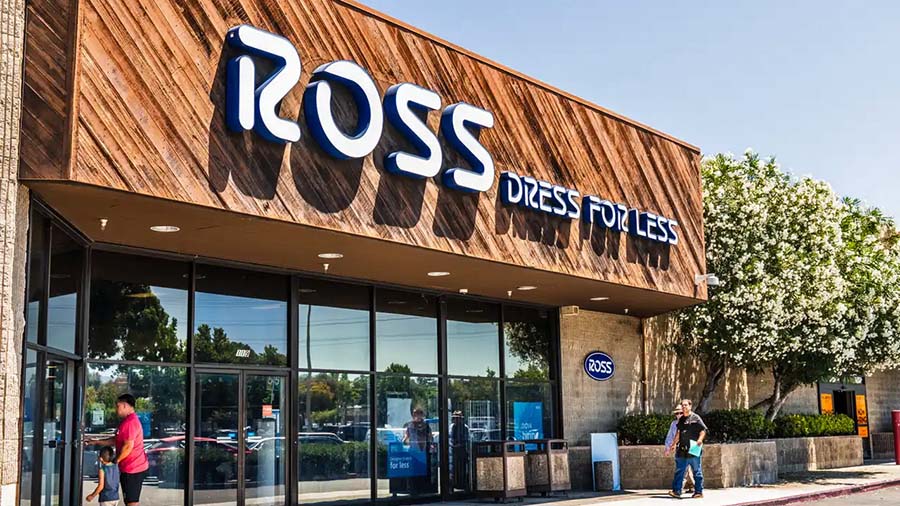
Navigating the my ross login secure access to ross stores online account portals requires an understanding of the specific corporate systems, vendor portals, and associate platforms utilized by Ross Stores, Inc. Depending on whether you are an active employee, a prospective job applicant, or a corporate vendor, accessing the correct digital infrastructure requires distinct credentials, URL verification, and multi-factor authentication protocols to protect sensitive corporate and personal data.
Understanding the Ross Stores Digital Ecosystem
Ross Stores operates multiple distinct online platforms designed for separate user groups, including hourly store associates, corporate employees, external vendors, and job seekers. Confusing these portals is the most common hurdle users face when attempting to log in. Each portal serves a unique operational purpose, governed by strict cybersecurity controls enforced by the company’s enterprise information technology department.
For retail associates and corporate staff, internal web portals handle human resources management, payroll tracking, work schedules, and benefits administration. Conversely, external applicants utilize separate hiring systems to submit resumes and track application statuses. Recognizing which portal corresponds to your specific relationship with the company ensures you navigate to the correct URL and employ the appropriate authentication credentials without triggering security lockouts.
Furthermore, enterprise security protocols mandate regular password updates, session timeouts, and encrypted connections. Understanding these foundational infrastructure elements prevents unauthorized access attempts and guarantees that your private employment or financial data remains protected behind industry-standard Secure Sockets Layer (SSL) encryption and enterprise identity management systems.
Prerequisites and Technical Requirements for Secure Access
Before attempting to access any corporate online account associated with Ross Stores, certain technical and administrative prerequisites must be satisfied. Modern enterprise web applications rely heavily on current browser technologies, active JavaScript frameworks, and strict cookie policies to maintain session integrity and prevent cross-site scripting vulnerabilities.
Users must ensure their web browser—whether Google Chrome, Mozilla Firefox, Apple Safari, or Microsoft Edge—is updated to its latest stable release. Outdated browsers often fail to support modern cryptographic protocols required for secure TLS handshakes, resulting in connection errors or blocked login attempts. Additionally, pop-up blockers and aggressive tracking protection extensions must be temporarily disabled or configured to permit traffic from official domain names associated with Ross Stores.
| Portal Category | Primary User Base | Core System Function | Typical Authentication Requirements |
|---|---|---|---|
| Associate Portal | Current Store & DC Employees | Payroll, scheduling, benefits | Employee ID, secure password, MFA |
| Candidate Gateway | Job Seekers | Application tracking, resumes | Email address, custom password |
| Vendor Central | Supply Chain Partners | Invoicing, purchase orders | Corporate login, digital certificate |
| Corporate Intranet | Headquarters Staff | Internal communications, ERP | Single Sign-On (SSO), hardware token |
Network security is another critical factor. Accessing enterprise portals over unsecured public Wi-Fi networks without a Virtual Private Network (VPN) is strongly discouraged and, in many corporate environments, blocked entirely by network-level firewalls. Utilizing a private, secure home internet connection or an approved corporate network ensures that login credentials transmitted during the authentication phase remain encrypted and shielded from packet interception.
Step-by-Step Procedure for Account Registration and First-Time Login
Establishing your credentials and executing your first login requires careful attention to detail, particularly regarding identity verification steps mandated by human resources or IT administration. New hires or approved partners typically receive initialization instructions directly from their department manager, human resources representative, or automated onboarding software.
- Obtain Official Credentials: Locate the temporary username, initial password, or registration token provided via official corporate onboarding documentation or your hiring manager. Never rely on search engine results that direct you to unverified third-party login pages.
- Navigate to the Verified Portal: Open your updated web browser and type the official URL provided in your documentation into the address bar. Verify that the URL begins with
https://and displays a secure padlock icon in the browser frame. - Input Initial Credentials: Enter your assigned Associate ID or registered email address into the primary identity field, followed by your temporary password in the designated security field.
- Complete Multi-Factor Authentication (MFA): If prompted by the enterprise identity management system, enter the verification code sent via SMS to your registered mobile device or generated through an authorized authenticator application.
- Update Your Password: Upon a successful initial login, the system will prompt you to replace your temporary password with a strong, complex passphrase adhering to enterprise complexity standards—typically requiring a mix of uppercase letters, lowercase letters, numbers, and special symbols.
- Verify Profile Information: Confirm that your personal contact details, tax withholding preferences, and direct deposit information are accurate within your employee profile dashboard before ending your session.
Troubleshooting Common Login and Access Failures
Encountering technical barriers during the login process can disrupt payroll verification or schedule management. Most access failures stem from incorrect credentials, browser cache corruption, or temporary account lockouts triggered by consecutive failed login attempts. Systematic troubleshooting can resolve these issues efficiently without requiring immediate escalation to IT support.
If you receive an invalid credentials error, double-check your keyboard layout to ensure Caps Lock is not enabled, and carefully re-enter your password. If you have forgotten your password, utilize the official "Forgot Password" or "Reset Password" utility linked directly on the legitimate login interface. Avoid clicking password reset links found in unsolicited emails, as these may represent phishing attempts designed to harvest corporate credentials.
Account lockouts occur automatically after a predefined number of incorrect password submissions to protect against brute-force attacks. If your account is locked, you must either wait out the mandatory cool-down period or contact your local store manager, human resources coordinator, or the corporate IT help desk to request a manual administrative unlock.
Browser-related anomalies can also impede access. Clearing your browser cache and cookies, or attempting the login within an incognito or private browsing window, frequently resolves persistent redirection loops or rendering failures caused by corrupted local site data.
Best Practices for Maintaining Account Security
Securing your online account extends far beyond the initial login phase. Retail and corporate systems are prime targets for cybercriminals seeking personal identifiable information (PII), banking details, and payroll diversion opportunities. Adhering to robust digital hygiene practices safeguards both your personal assets and enterprise network integrity.
Never share your login credentials, Associate ID, or MFA verification codes with any third party, including coworkers, supervisors, or individuals claiming to represent IT support. Legitimate corporate representatives will never ask for your password over the phone, via text message, or through unverified email channels. Always log out completely from your session when finished, especially when using shared computers in break rooms or public computing environments, and close all browser windows to terminate active session cookies.
Frequently Asked Questions
How do I recover a forgotten password for my Ross employee account?
To recover a forgotten password, navigate to the official login portal and select the password reset option. You will be required to verify your identity by answering security questions or entering a confirmation code sent to your verified mobile number or personal email address on file. If automated recovery fails, contact your store manager or human resources representative for assistance.
What should I do if my account becomes locked due to multiple failed login attempts?
If your account locks out after consecutive incorrect password entries, you must typically wait 30 minutes for the security restriction to lift automatically, or contact your internal IT support desk or HR administrator. They can verify your identity and manually reset your account status to restore access.
Is it safe to access my Ross online account from a mobile device?
Yes, provided you are using an updated web browser over a secure cellular data connection or a trusted private Wi-Fi network. Avoid conducting sensitive financial transactions or updating direct deposit information on public Wi-Fi networks unless you are utilizing a reputable virtual private network (VPN).
Why am I experiencing infinite redirection loops when trying to log in?
Redirection loops are generally caused by outdated browser cookies, conflicting browser extensions, or ad-blockers interfering with single sign-on (SSO) authentication tokens. Clearing your browser cache and cookies or switching to a clean private browsing window usually resolves the issue.
Who should I contact if I suspect unauthorized activity on my account?
If you notice unfamiliar changes to your direct deposit details, work schedule, or personal profile, immediately notify your store manager, human resources department, and the corporate IT security team. Swift reporting limits potential exposure and initiates enterprise security protocols to secure your account.
Next Actions for Secure Account Management
To maintain uninterrupted access to your Ross online account, bookmark only the official, verified portal URLs directly in your browser and avoid using search engine advertisements that may direct you to spoofed phishing sites. Regularly review your profile settings, ensure your recovery contact information remains current, and immediately report any technical irregularities or suspected security breaches to your human resources department or corporate IT support.