Creating a Nintendo Account is the foundational step for any user looking to access the Nintendo eShop, engage in online multiplayer, and manage cloud save data for Nintendo Switch, mobile devices, and PC services. As of 2026, the ecosystem has unified further, requiring users to navigate strict security protocols including mandatory two-factor authentication to ensure the safety of digital assets and linked payment methods.
Prerequisites and Initial System Requirements
Before initiating the registration process, ensure you have access to a valid email address that you own and control. Nintendo sends a verification code during the signup process that must be entered within a specific timeframe to activate the account. If you are a parent creating an account for a child, please note that the 2026 guidelines require a parental account to be linked if the user is under the age of 13 to comply with global data privacy standards.
Technical requirements for the 2026 interface include:
- A stable internet connection to communicate with Nintendo’s authentication servers.
- A modern web browser (Chrome, Edge, Safari, or Firefox) or a Nintendo Switch console in the initial setup phase.
- Your date of birth, which is used to determine regional eligibility for specific games and eShop content.
- A mobile device or authenticator app (such as Google Authenticator) for the highly recommended two-factor authentication security layer.
Step-by-Step Account Creation Procedure
To create your account, navigate to the official Nintendo accounts portal. Follow these exact steps to ensure your account is correctly configured for your region and hardware.
- Navigate to the official Nintendo Account website.
- Select the Create a Nintendo Account option.
- Choose the option to create an account for yourself or for a child (under 13).
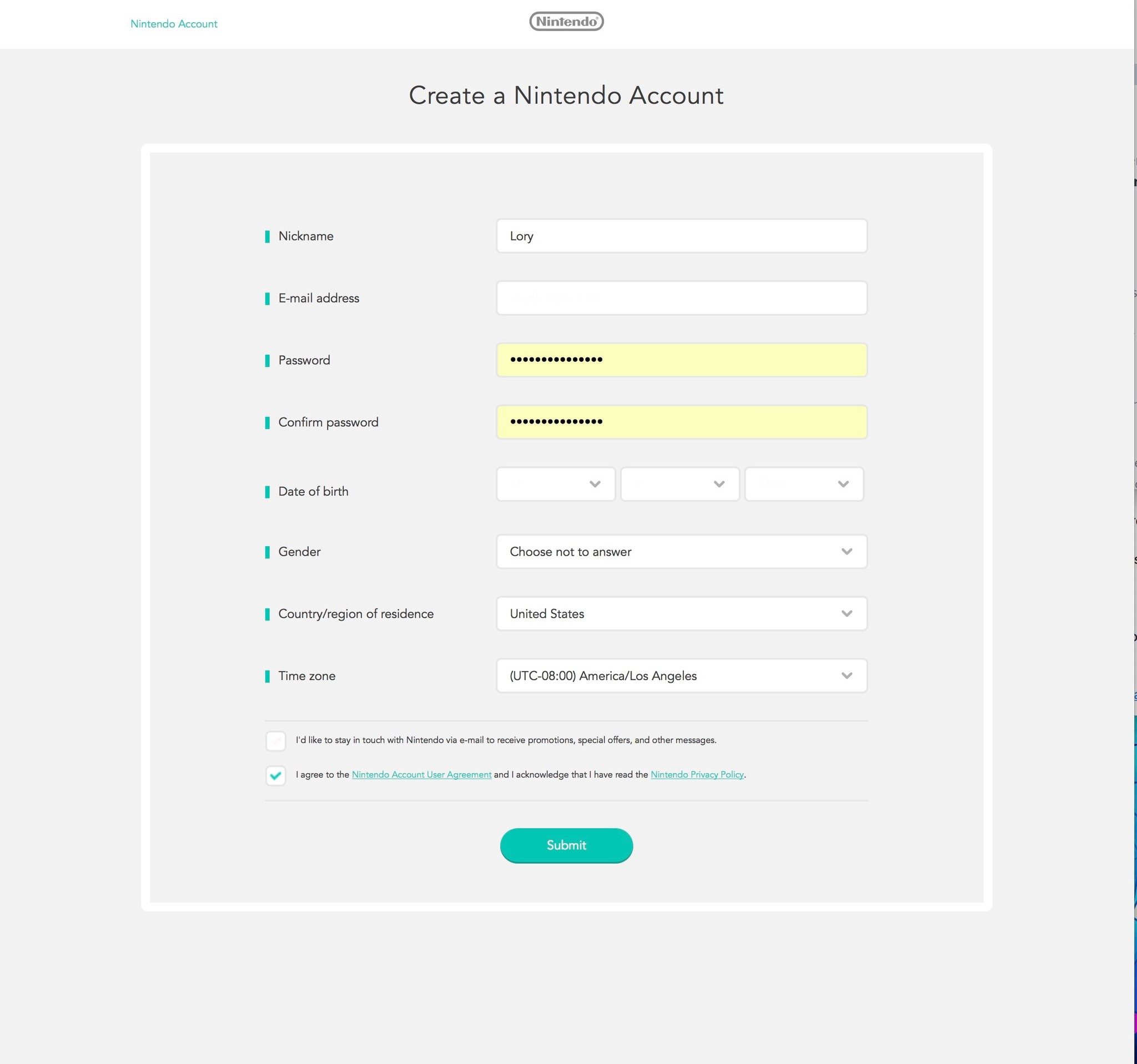
- Enter your profile information, including nickname, email address, password, date of birth, gender, and country/region.
- Review and accept the Nintendo Account Agreement and Privacy Policy.
- Check your email inbox for the four-digit verification code.
- Enter the verification code on the setup page to finalize the creation of your account.
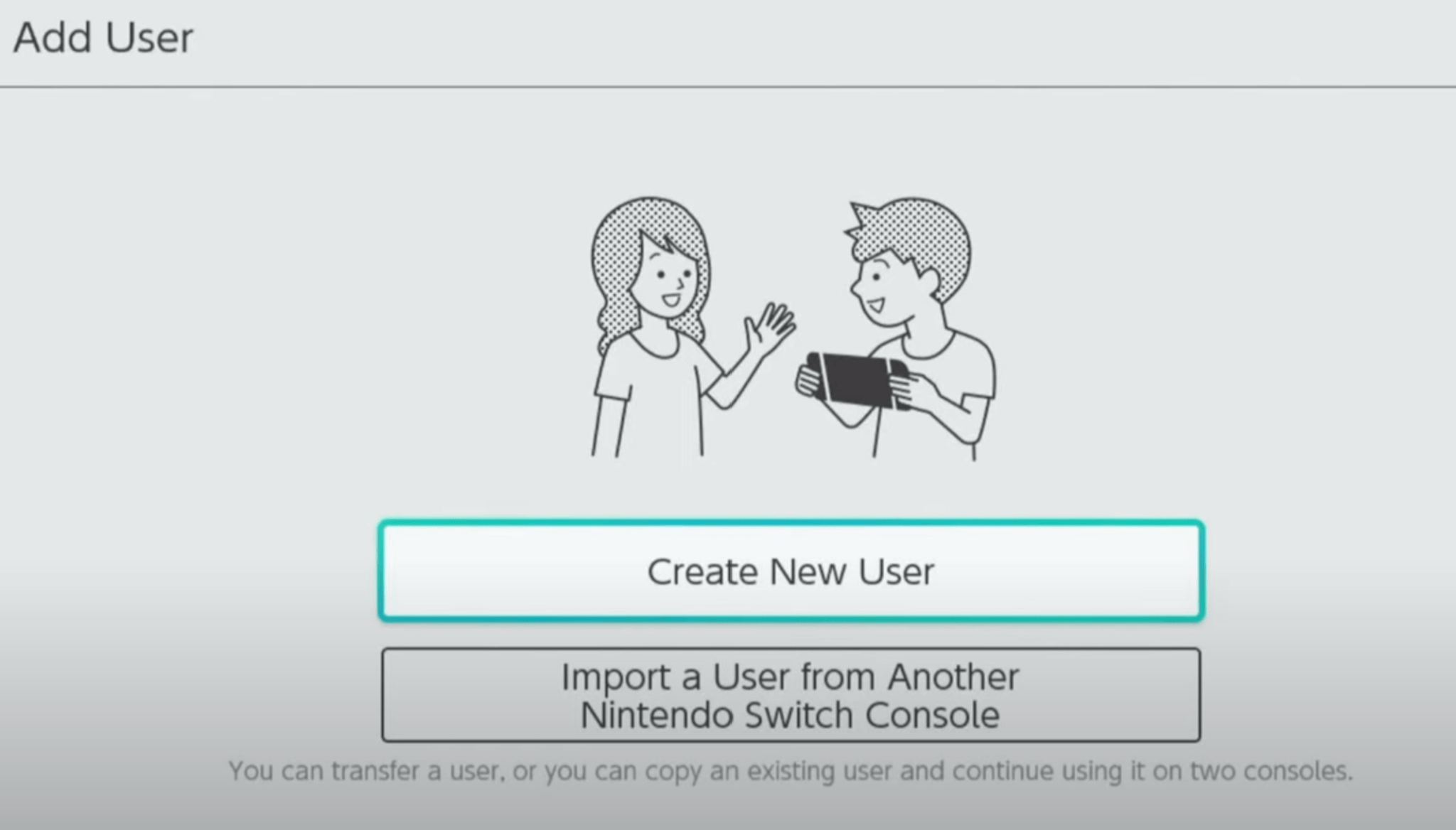
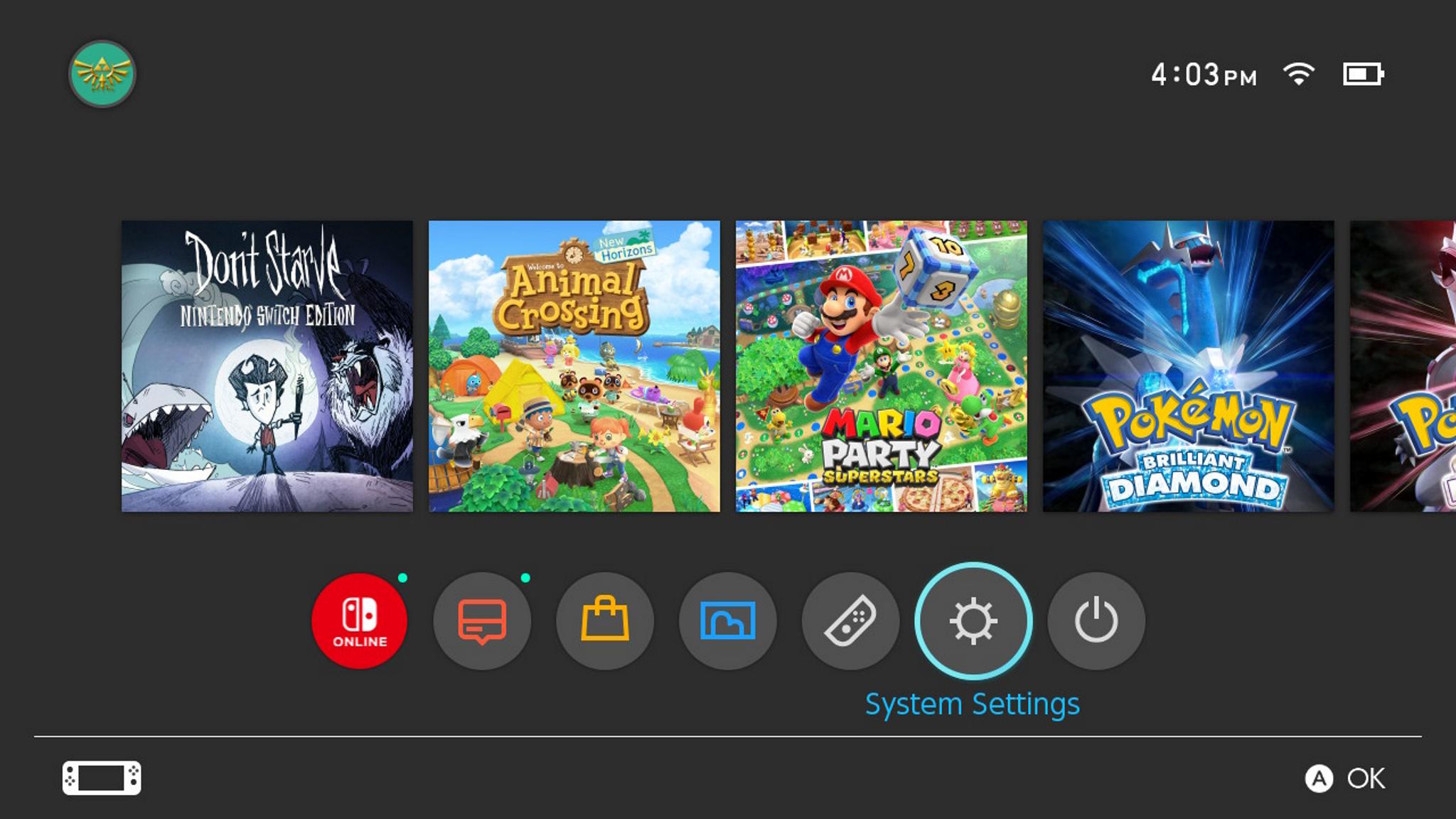
Once these steps are completed, your account exists in the cloud. You may then link it to your Nintendo Switch console by navigating to System Settings, selecting User, and then choosing Link Nintendo Account.
Security Configurations and Account Protection
In 2026, the rise in digital credential harvesting makes securing your Nintendo Account a non-negotiable task. Once your account is live, you must prioritize the following security configurations to prevent unauthorized access to your linked credit cards or digital library.
Mandatory Security Protocols
Two-Factor Authentication is currently the primary defense against account hijacking. Once logged in, navigate to the Sign-in and security settings to enable two-factor authentication. You will be prompted to download an authenticator app. This app generates a rotating six-digit code that is required every time you sign into a new device or browser, effectively rendering stolen passwords useless to attackers.
Comparison of Account Types and Regional Restrictions
Understanding the limitations of your account based on its registered region is vital, as the Nintendo eShop is geographically locked.
| Feature | Standard Nintendo Account | Child Account (Under 13) |
|---|---|---|
| eShop Access | Full Access | Restricted by Parental Controls |
| Nintendo Switch Online | Full Subscription Support | Limited to Specific Titles |
| Cloud Saves | Supported | Supported |
| Account Linking | Unrestricted | Restricted to Family Group |
| Payment Methods | Credit Card / PayPal | None (Requires Parental Funding) |
Please note that changing your region after account creation is possible, but you will lose your eShop balance and any unredeemed codes associated with the previous region. Always ensure your region selection matches your physical location to avoid payment processing errors when purchasing games or DLC.
Managing Family Groups and Parental Controls
If you are a head of household managing multiple Nintendo devices, the 2026 Family Group feature is the most efficient management tool. You can invite up to eight Nintendo Accounts into a single Family Group. This allows the primary account holder to manage parental controls, such as playtime limits and spending restrictions, through the dedicated Nintendo Switch Parental Controls mobile app.
To set up a family group:
- Log into your primary Nintendo Account.
- Select the Family Group menu.
- Choose Add Member to invite other accounts via email address.
- Once accepted, you can designate specific accounts as supervised members.
Troubleshooting Common Registration Errors
Users occasionally encounter specific roadblocks during the setup process. Below are the most common issues reported in 2026 and their technical resolutions.
- Verification Code Not Received: Ensure your email provider is not blocking messages from no-reply@accounts.nintendo.com. Check your spam or promotions folders before requesting a new code.
- Region Mismatch Errors: If you attempt to access an eShop outside of your registered region, the store will deny access. You must use a payment method issued in the country matching your account's set region.
- Password Complexity Issues: The 2026 system requires a password of at least 8 characters, including a mix of uppercase letters, lowercase letters, numbers, and symbols. Simple passwords will be rejected by the validation server.
- System Update Requirements: If you are trying to link an account on an older Switch console that has not been updated in several months, you may receive a connection error. Perform a system update via the System Settings menu to ensure compatibility with current account APIs.
Frequently Asked Questions
Can I have multiple Nintendo Accounts on one Switch? Yes, you can link up to eight Nintendo Accounts to a single Nintendo Switch console. Each account will have its own save data, digital library, and individual eShop history.
Do I need a paid subscription to make a Nintendo Account? No, creating a Nintendo Account is free. However, a paid subscription to Nintendo Switch Online is required to access the majority of online multiplayer features and cloud save backups.
What happens if I forget my password? If you lose access to your account, use the "Forgot Password" link on the sign-in page to trigger a reset email. If you lose access to your email address as well, you must contact Nintendo Support with your account details for manual recovery.
Can I move my save data to a new console? Yes, as long as both consoles have your Nintendo Account linked. You can use the "Transfer Your User Data" feature in System Settings to move your profile and save data, or utilize the Nintendo Switch Online cloud backup feature to download saves to the new hardware.
Are Nintendo Accounts compatible with older consoles like the 3DS or Wii U? Nintendo Accounts are designed primarily for the Nintendo Switch and mobile applications. Legacy consoles use Nintendo Network IDs, which are distinct and separate from modern Nintendo Accounts, though they can be linked in specific scenarios for account merging purposes.
Ensure your account is active and secured by visiting the official Nintendo portal today to finalize your setup and begin accessing the full suite of 2026 digital gaming services.