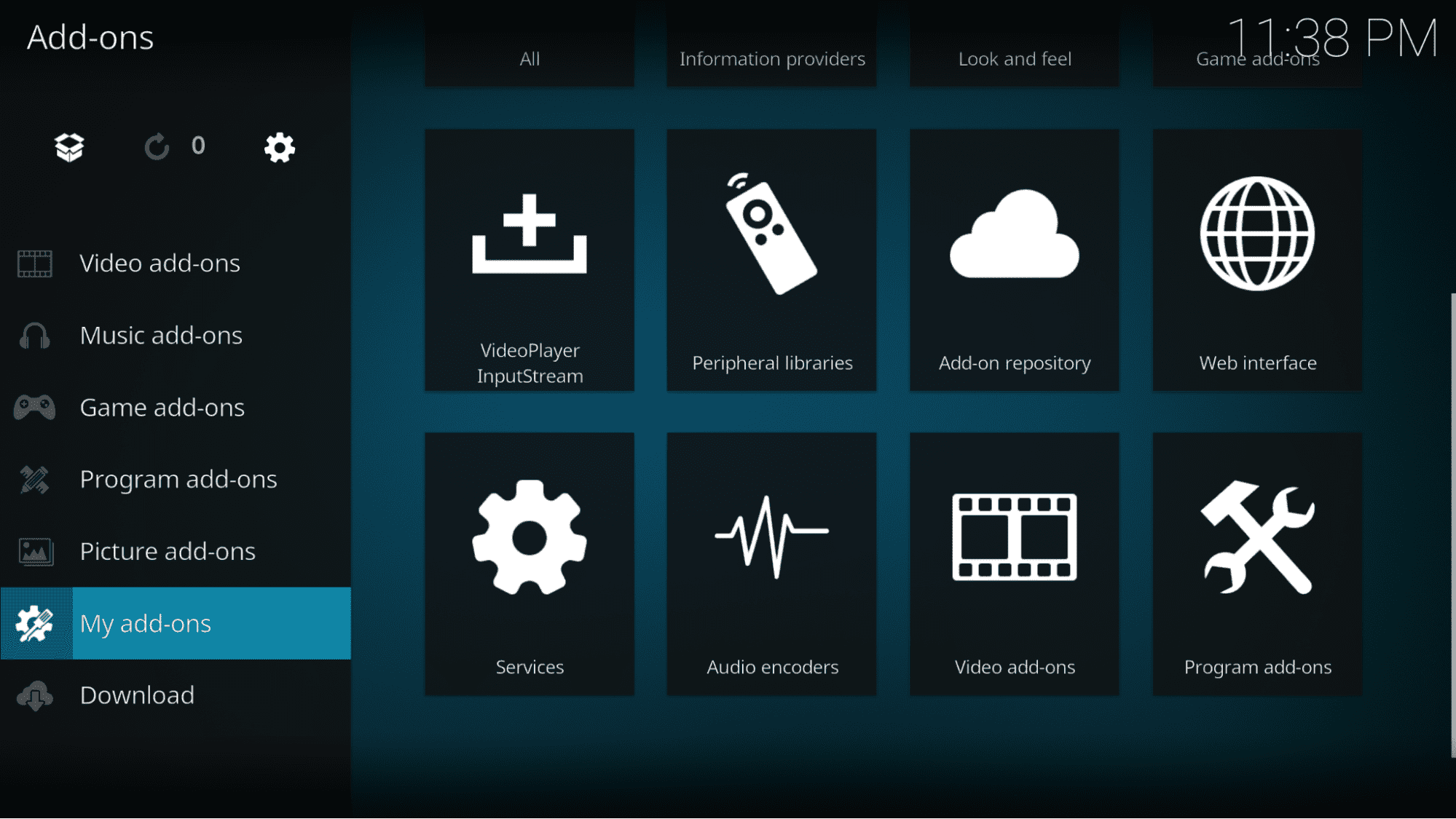
Software add-ons are modular components that append new features or capabilities to an existing program without modifying its core code. Common in web browsers, productivity suites, and creative software, they allow users to customize their digital environment to meet specific workflow, security, or aesthetic needs through standardized application programming interfaces (APIs).
Understanding the Architecture of Modern Add-ons
In 2026, the landscape of software add-ons—often interchangeably called extensions, plug-ins, or add-ins—is defined by a move toward highly secure, sandboxed environments. At its core, an add-on is a supplementary layer of software designed to "hook" into a host application’s API. This architecture allows the host program (like Google Chrome, Microsoft Excel, or VS Code) to remain lightweight while providing users the flexibility to bolt on specialized tools.
The evolution of add-on architecture has been driven primarily by the need for security. Historically, add-ons had broad access to system resources, which led to significant vulnerabilities. Modern frameworks, such as the WebExtensions API used by Chromium-based browsers and Firefox, or the Office JavaScript API used by Microsoft 365, restrict add-ons to specific "permissions." These permissions define exactly what the add-on can see or change, such as reading website data, accessing the clipboard, or managing downloads.
By 2026, the transition to Manifest V3 across all major browsers has solidified. This standard replaced older, more permissive systems to improve browser performance and privacy. It forces add-ons to use "declarative" rules rather than allowing them to intercept and modify all network traffic, which has fundamentally changed how ad-blockers and security tools operate. Understanding this architecture is vital because it determines which add-ons are compatible with your current software versions and how much they might impact your system's speed.
Primary Categories and Use Cases
The utility of add-ons spans across almost every sector of digital life. In 2026, we categorize these tools based on their host environment and the specific problem they solve.
Web Browser Extensions
Browser extensions remain the most common form of add-ons. They serve several critical functions:
- Privacy and Security: Tools like uBlock Origin or Bitwarden provide ad-blocking and encrypted password management directly within the navigation interface.
- Productivity and Language: Grammarly and LanguageTool offer real-time syntax correction, while translation extensions allow for seamless multi-language browsing.
- Developer Tools: Extensions like React Developer Tools or JSON Viewers are essential for software engineers to inspect code and debug applications on the fly.
Productivity Suite Add-ins
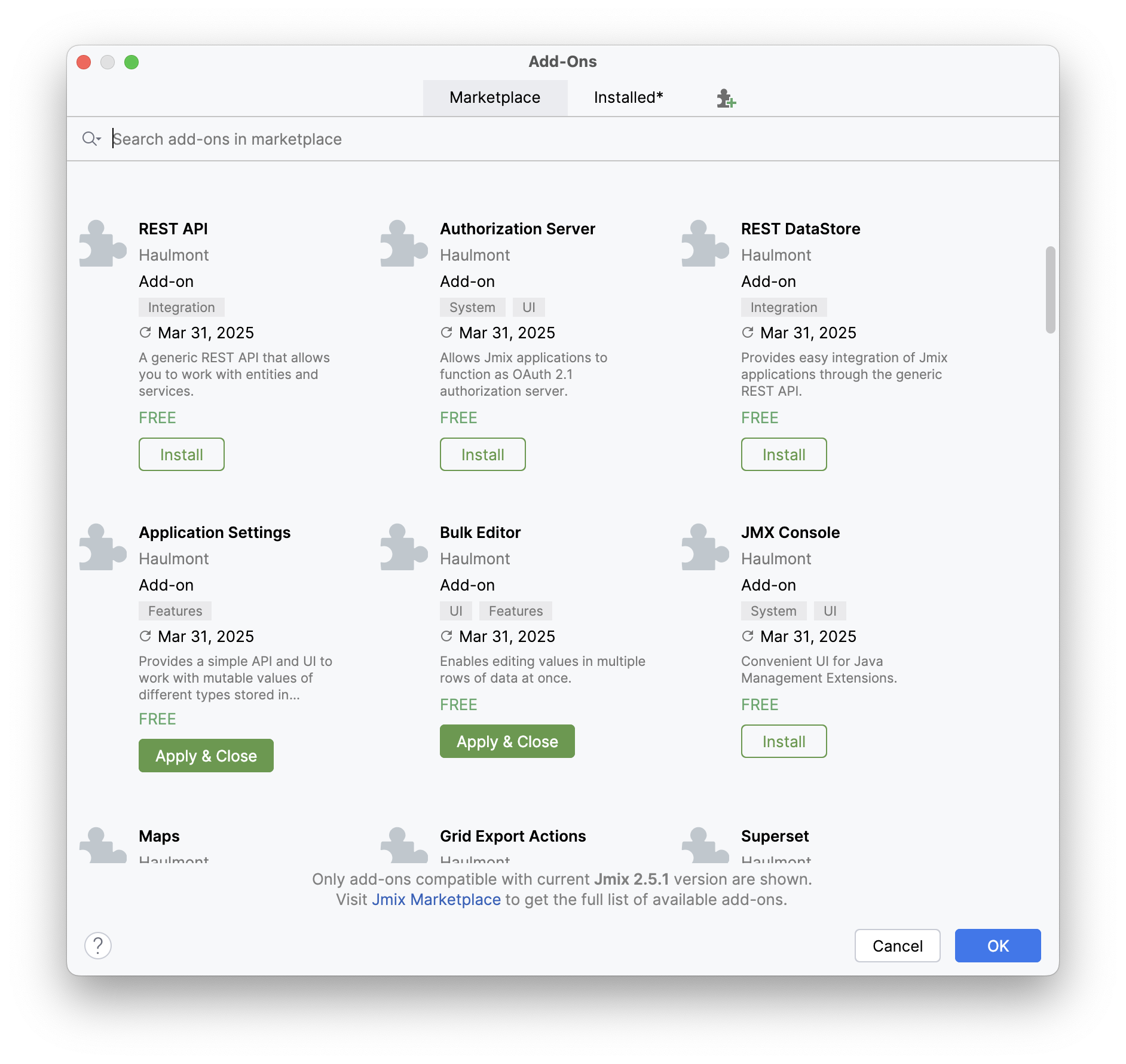
Software like Microsoft 365 and Google Workspace utilizes add-ins to bridge the gap between document creation and external data. For example, a user might install a Salesforce add-in for Outlook to log emails directly into a CRM, or use a "Solver" add-in in Excel to perform complex linear programming and optimization tasks. These are often managed through centralized marketplaces like the Microsoft AppSource.
Creative and Development Extensions
For professionals, add-ons are often the "secret sauce" of a workflow. In Adobe Creative Cloud, plugins can automate repetitive tasks like skin retouching or color grading. In integrated development environments (IDEs) like Visual Studio Code, extensions provide support for specific programming languages, themes, and AI-assisted coding through GitHub Copilot or similar local LLM (Large Language Model) integrations.
Key Considerations: Privacy, Security, and Permissions
While add-ons offer immense value, they represent a significant "attack surface" for cybersecurity threats. In 2026, the primary risk associated with add-ons is no longer just overt malware, but "data scraping" and the "supply chain attack."
The Principle of Least Privilege When installing an add-on, users are presented with a list of required permissions. It is a critical best practice to only install tools that request the minimum access necessary. For instance, a simple "dark mode" extension should not require permission to "read and change all your data on all websites." If the permissions seem excessive for the stated function, it is a red flag.
The "Sold Extension" Phenomenon A common tactic for bad actors is to purchase a popular, legitimate extension from its original developer. Once the ownership changes, the new owner may push an update that includes tracking scripts or malicious code. Because browsers typically update extensions automatically, users may be compromised without ever changing their habits. Regularly auditing your installed add-ons and checking for changes in developer names or privacy policies is a necessary maintenance task in 2026.
Comparison of Extension and Add-on Types
The following table differentiates between the various terms often used in the industry to help users identify what they are installing and the potential impact on their system.
| Type | Common Host | Primary Benefit | Technical Impact |
|---|---|---|---|
| Browser Extension | Chrome, Firefox, Safari | Web customization, ad-blocking, privacy. | Moderate RAM/CPU usage; limited by Manifest V3. |
| Plugin (Legacy) | Older Browsers (Java/Flash) | Rich media playback, specialized hardware. | High risk; largely deprecated for security reasons. |
| Add-in | Microsoft Office, Excel, Outlook | Enterprise integration, data analysis. | Integrated into the software's UI; uses host resources. |
| IDE Extension | VS Code, IntelliJ | Language support, linting, AI coding. | Can significantly slow down startup time if many are active. |
| CMS Plugin | WordPress, Shopify | Website features (SEO, contact forms). | Critical for site functionality; affects server-side speed. |
Steps for Effective Add-on Management
Managing a suite of add-ons requires a balance between functionality and system hygiene. Following a structured approach ensures that your software remains fast and your data stays secure.
- Sourcing from Official Marketplaces: Always download add-ons from verified sources like the Chrome Web Store or the Mozilla Add-ons Store. These platforms perform automated scans for malware and enforce basic security standards.
- The "One-In, One-Out" Rule: To prevent "extension bloat," consider a policy where you remove an unused add-on for every new one you install. This keeps the host application's memory footprint manageable.
- Regular Permission Audits: Every few months, navigate to your browser's extension management page (e.g.,
chrome://extensions). Review the "Site Access" settings. Modern browsers allow you to restrict an extension’s access to "on click" rather than "all sites," which is a significant security win. - Monitoring Resource Usage: In 2026, Chromium browsers include a "Task Manager" (accessible via Shift+Esc) that shows exactly how much memory and CPU each individual extension is consuming. If your browser feels sluggish, use this tool to identify and disable the culprit.
Troubleshooting and Performance Optimization
Even well-coded add-ons can cause issues, particularly when two different extensions attempt to modify the same part of a webpage or document.
Compatibility Conflicts If you notice that certain websites are not loading correctly or features are "breaking," the most common cause is a conflict between two add-ons. The standard troubleshooting procedure is to disable all add-ons and then re-enable them one by one. This "binary search" method allows you to isolate the specific tool causing the conflict.
Version Mismatches In 2026, software updates are frequent. If a host application (like Firefox) updates to a new version, an add-on developer may need a few days to release a compatibility patch. If an add-on stops working after a major software update, check the developer’s page for a "Beta" or "Nightly" version, which often contains the necessary fixes for the latest software releases.
Deprecation of Legacy Manifests With the full enforcement of Manifest V3 in 2026, many older "Manifest V2" extensions may simply cease to function. Users should look for "MV3-compliant" alternatives to their favorite legacy tools to ensure uninterrupted service.
The Role of Artificial Intelligence in 2026 Add-ons
The defining trend for add-ons in 2026 is the integration of local and cloud-based AI. We have moved beyond simple chat boxes; add-ons now act as "context-aware agents."
For example, a modern research add-on doesn't just bookmark a page; it summarizes the content, extracts key data points into a spreadsheet, and suggests related reading based on your previous browsing history. This is often achieved through "Sidepanel APIs," which allow add-ons to occupy a persistent space on the screen without obscuring the main content. This level of integration requires higher computational resources, making the "resource monitoring" mentioned earlier more important than ever.
Frequently Asked Questions
Do add-ons slow down my computer?
Yes, every active add-on consumes a portion of your system's RAM and CPU. While a single extension might have a negligible impact, cumulative "extension bloat" can lead to slower browser startup times and increased battery drain on laptops. It is recommended to keep your active list under 10–15 essential tools.
Are browser add-ons safe for online banking?
Generally, yes, if they are from reputable developers. However, any extension with "read and change data" permissions can theoretically see your banking interface. For maximum security, use a "Private" or "Incognito" window for banking, as most browsers disable extensions by default in these modes unless manually permitted.
What is the difference between a plugin and an extension?
While often used interchangeably, "plugins" historically referred to third-party code (like Flash or Java) that handled content the browser couldn't, often running outside the browser's security sandbox. "Extensions" are modern, browser-native tools built using web technologies (HTML, CSS, JS) that run within a strictly controlled environment.
Can I use Chrome extensions on other browsers?
Yes, in 2026, most major browsers (Microsoft Edge, Brave, Opera, Vivaldi) are based on the Chromium engine. These browsers are natively compatible with the Chrome Web Store. Firefox uses a similar but slightly different API, though many developers port their extensions to both platforms with minimal changes.
How do I remove an add-on completely?
In most applications, you can right-click the add-on icon and select "Remove" or "Uninstall." To ensure no residual data remains, you can navigate to the application’s "Manage Extensions" page and click "Remove." For enterprise software like Microsoft Word, this is typically handled through the "Get Add-ins" menu under the "My Add-ins" tab.
Recommended Action: Audit Your Digital Toolkit
To ensure optimal performance and security in 2026, your immediate next step should be a comprehensive add-on audit. Open your primary browser and your most-used productivity software. Identify any tools you have not used in the last 30 days and remove them. For the remaining extensions, check their permissions and restrict them to "On Click" access where possible. This simple "digital hygiene" routine reduces your vulnerability to data breaches and can significantly improve the responsiveness of your software.