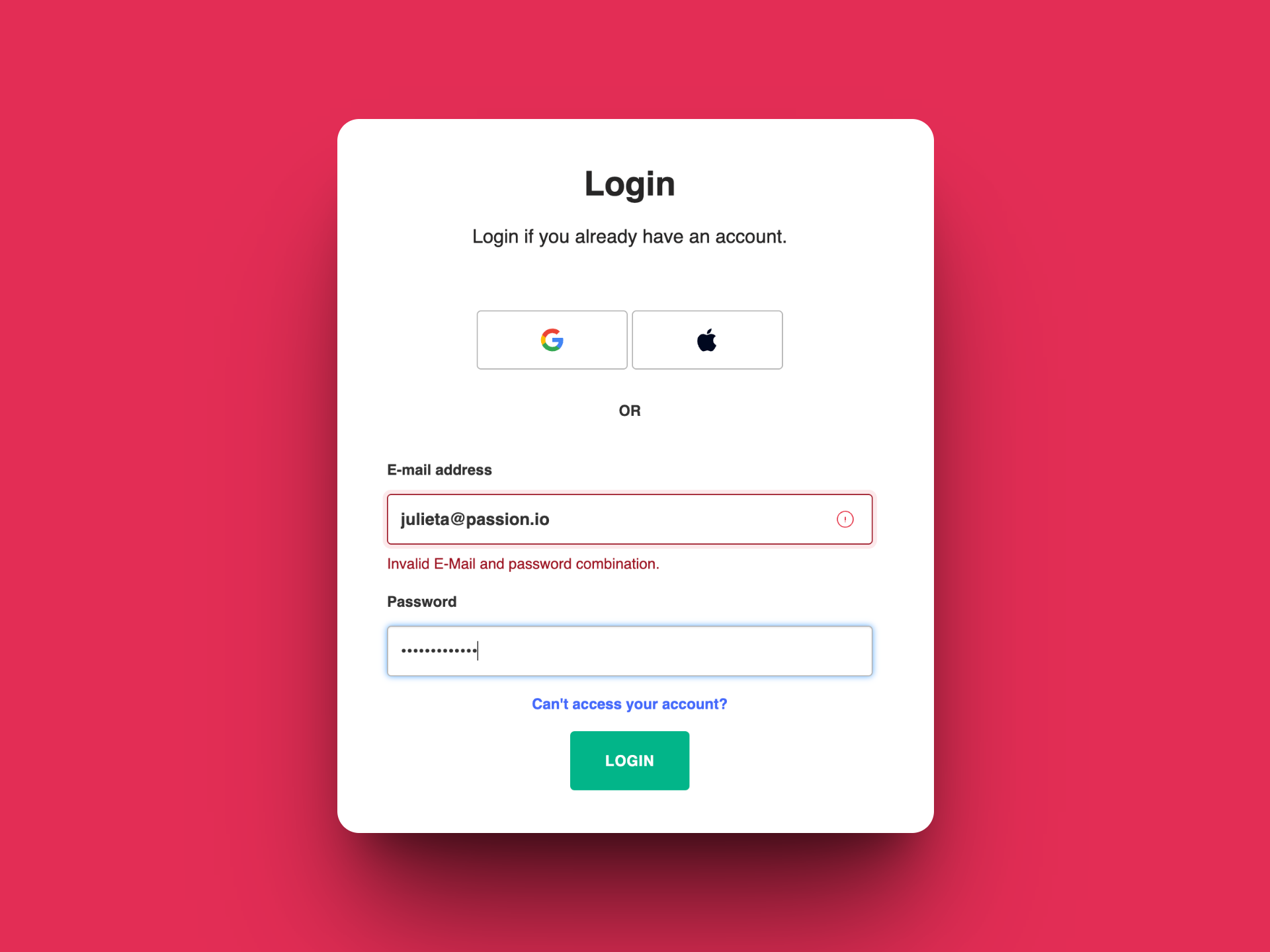
To gain account access, you must provide valid credentials—typically a username and password, passkey, or biometric identifier—to an authentication system. If you are locked out, you must verify your identity through a secondary method, such as an email recovery link, a SMS verification code, or a pre-generated backup security key.
Understanding the Fundamentals of Account Access
Account access is the gateway to digital identity, encompassing the processes of authentication and authorization. In 2026, the landscape of digital entry has shifted significantly from traditional alphanumeric passwords toward more robust, cryptographic methods. Authentication is the process of proving who you are, while authorization determines what you are allowed to do once you have entered the system.
Most modern platforms utilize a multi-layered approach to ensure that the individual requesting access is the legitimate owner. This is generally categorized into three "factors" of authentication:
- Something you know: A password, PIN, or the answer to a security question.
- Something you have: A smartphone, a hardware security key (like a YubiKey), or a physical token.
- Something you are: Biometric data such as fingerprints, facial recognition, or iris scans.
The shift in 2026 leans heavily toward "passwordless" environments. Organizations now prioritize FIDO2 standards, which allow users to leverage their devices as local authenticators. This reduces the risk of phishing, as there is no "secret" password stored on a central server that can be intercepted or leaked in a data breach. Understanding these layers is the first step in troubleshooting access issues or hardening your own digital perimeter.
Common Barriers to Account Access
Despite the advancement in technology, users frequently encounter hurdles when attempting to log into their services. Identifying the root cause of an access failure is essential before attempting recovery steps.
Forgotten or Compromised Credentials
The most common barrier remains the loss of credentials. While password managers have mitigated this, many users still rely on memory. If a password has been changed due to a security breach without the user's knowledge, the original credentials will no longer function. In 2026, many services proactively lock accounts if they detect that a user's known password has appeared in a recent "dark web" credential dump.
Security Triggers and Account Lockouts
Automated security systems may block access if they detect "suspicious activity." This can include multiple failed login attempts, an unrecognized IP address, or access attempts from a new geographical location. These lockouts are designed to protect the user but can become a significant inconvenience if the user is traveling or using a new VPN service.
Technical and Environmental Factors
Sometimes the issue is not with the credentials but with the environment. Browser cache corruption, expired session cookies, or even an incorrect system clock can prevent successful authentication. Secure protocols like OAuth 2.0 and OpenID Connect rely on precise timestamps; if your device's time is out of sync with the server by even a few minutes, the "handshake" required for access will fail.
Step-by-Step Guide: How to Regain Access to a Locked Account
If you find yourself unable to log in, follow this structured approach to restore access safely and efficiently.
Step 1: Initial Troubleshooting and Verification
Before triggering a formal recovery process, ensure the basics are covered. Check your internet connection, disable any aggressive ad-blockers or VPNs that might be interfering with scripts, and try an "Incognito" or "Private" browser window. This rules out local cache issues. Verify that you are on the official login page; phishing sites often mimic login portals to steal credentials during the "recovery" process.
Step 2: Utilize the "Forgot Password" or "Account Recovery" Tool
Almost every service provides a dedicated link for users who have lost access.
- Navigate to the login portal and select Forgot Password or Trouble Logging In.
- Enter your registered email address or username.
- Check your recovery email or SMS for a verification link or code. In 2026, many high-security accounts (like banking or government portals) may require you to solve a specialized CAPTCHA or provide a "liveness" check using your camera to ensure you are not an automated bot.
Step 3: Leveraging Backup Methods
If you do not have access to your primary email or phone, look for "Try another way." This is where you would use:
- Backup Codes: A list of one-time-use codes you were prompted to save when you first enabled Two-Factor Authentication (2FA).
- Trusted Devices: Some platforms allow you to approve a login from a device where you are already signed in (e.g., approving a laptop login via a mobile app).
- Physical Security Keys: Inserting a registered USB or NFC security key to prove physical possession.
Step 4: Formal Identity Verification (The "Last Resort")
If all automated methods fail, you may need to submit a manual recovery request. This often involves providing government-issued identification or answering detailed questions about the account's history (e.g., "What was the date of your last transaction?" or "What were the last four digits of the card on file?"). In 2026, many companies use AI-assisted identity verification to compare a "selfie" against your uploaded ID in real-time.
Modern Authentication Technologies in 2026
As of 2026, the industry has largely moved toward the Passkey standard. Passkeys are a replacement for passwords that provide faster, easier, and more secure sign-ins to websites and apps.
Unlike passwords, passkeys are based on public-key cryptography. Your device creates a unique key pair for every account. The "public" key is sent to the service, while the "private" key stays securely on your device (protected by your screen lock, such as a fingerprint or FaceID). Because the private key is never shared, it cannot be stolen in a server-side breach.
Furthermore, the FIDO Alliance has standardized how these keys sync across devices. If you create a passkey on your iPhone, it can be available on your Mac or iPad via your cloud keychain, ensuring that losing a single physical device does not permanently lock you out of all your accounts. For enterprise environments, hardware-bound keys remain the gold standard, providing an "air-gapped" layer of security that software-based keys cannot match.
Comparison of Access and Authentication Methods
The following table compares the most common methods used in 2026 to manage and secure account access.
| Method | Security Level | User Friction | Recovery Difficulty | Best Use Case |
|---|---|---|---|---|
| Password Only | Low | Low | Easy | Low-risk forums, local accounts. |
| Password + SMS 2FA | Medium | Moderate | Moderate | General consumer accounts. |
| Authenticator App (TOTP) | High | Moderate | Hard (if no backup) | Email, social media, work tools. |
| Passkeys (Biometric) | Very High | Very Low | Moderate | Banking, primary email, healthcare. |
| Hardware Security Key | Highest | High | Very Hard | Sensitive corporate/financial data. |
Best Practices for Managing Multiple Account Access Points
Managing dozens or hundreds of accounts requires a systematic approach to avoid "lockout fatigue" and security vulnerabilities.
Centralize with a Managed Vault
Using a reputable password manager (such as Bitwarden, 1Password, or KeePassXC) is no longer optional for the security-conscious. These tools generate complex, unique passwords for every site and store them in an encrypted vault. In 2026, these vaults also serve as "Passkey Managers," allowing you to store and sync your cryptographic keys across different operating systems.
Implement the "3-2-1" Recovery Rule
Just as you back up data, you should back up your access.
- 3 Ways to verify identity (Email, SMS, App).
- 2 Physical locations for backup codes (One digital encrypted, one physical safe).
- 1 Emergency contact or "Legacy Contact" (many platforms now allow you to designate a trusted person who can request access to your account in the event of an emergency).
Audit Access Regularly
At least once per year, review which devices and third-party applications have access to your primary accounts. If you see an old phone or a "quiz app" you used three years ago still listed in your "Authorized Apps" section, revoke it immediately. This minimizes the "attack surface" of your digital identity.
Troubleshooting Persistent Access Issues
When standard recovery steps fail, the problem often lies in the interaction between your network and the service's security filters.
- Check for "IP Reputation" Issues: If you are on a public Wi-Fi or a shared corporate network, your IP address might be flagged due to the actions of others on that same network. Switching to cellular data often bypasses this.
- Verify Service Status: Before assuming your account is at fault, check official status pages or third-party monitors (like Downdetector). Global outages can mimic account-specific errors.
- DNS Issues: Occasionally, your ISP’s Domain Name System (DNS) may be out of date, pointing you to an old version of a login server. Switching your device's DNS settings to a provider like Cloudflare (1.1.1.1) or Google Public DNS can resolve these "ghost" errors.
- Hardware-Level Failures: If you use a physical security key, ensure the USB port is clean and the drivers are up to date. On mobile devices, ensure that the "Secure Enclave" or "Trusted Execution Environment" hasn't been compromised by unofficial software modifications (rooting/jailbreaking), which often disables biometric access for security reasons.
FAQ: Common Account Access Questions
How do I regain access if I lost my 2FA phone?
If you lost your 2FA device, you must use the backup codes you saved during the initial setup. If you do not have those codes, you will need to use the "Account Recovery" process, which may take several days as the service provider manually verifies your identity to prevent unauthorized takeover.
Is it safe to stay logged in on a public computer?
No. Even if you "Sign Out," session tokens or local storage data can sometimes persist. Always use a Private/Incognito window on public hardware, and ensure you close the entire browser application once finished.
Why does my account say "Access Denied" even with the right password?
This is usually a result of a security filter. The system may have flagged your location, your browser's "fingerprint," or your IP address as suspicious. Try clearing your cookies or logging in from a known, "trusted" device you have used previously.
Can I share my account access with a family member safely?
Instead of sharing passwords, use the "Family Sharing" or "Shared Vault" features provided by password managers. This allows them to have their own credentials or access a shared set of keys without compromising the security of your primary master password.
What should I do if I suspect my account was hacked?
Immediately attempt to change your password and "Sign Out of All Sessions" in the security settings. Check your recovery email and phone number to ensure they haven't been changed. If you are locked out, contact the service provider's emergency security line immediately.
Recommended Action: Audit Your Recovery Methods
The most effective way to ensure you never lose account access is to prepare for the loss of your primary device today. Open your most critical accounts—your primary email, your primary bank, and your password manager—and navigate to the "Security" or "Login" settings. Ensure that you have at least two recovery methods configured (e.g., an authenticator app and a physical backup code). Download your backup codes, print them, and store them in a secure, physical location such as a fireproof safe. Taking these steps now prevents a minor technical failure from turning into a permanent loss of your digital life.