Access status refers to the real-time state of a user's or entity's permissions regarding a specific digital resource. It indicates whether an identity is authenticated, authorized, or restricted based on security policies, account health, and environmental factors. Determining access status is the primary function of modern Identity and Access Management (IAM) systems.
The Fundamentals of Access Status in Digital Ecosystems
In the technological landscape of 2026, access status is no longer a simple binary "yes" or "no" interaction. It has evolved into a multi-layered verification process that ensures the right person has the right access to the right data at the right time. At its core, access status represents the intersection of identity verification (authentication) and permission enforcement (authorization).
When a system queries an access status, it checks several databases and policy engines simultaneously. This check determines if the user is who they claim to be and if their current environment—such as their device, location, and connection security—meets the organizational requirements for that specific resource. For example, a user might have an "Active" status for their email but a "Restricted" status for the financial database because they are connecting from an unmanaged device or an unfamiliar geographic location.
Understanding the nuance between different status types is essential for both IT administrators and end-users. While a user might see a generic "Access Denied" message, the underlying status could be "Account Locked," "Permission Mismatched," or "Conditional Access Blocked." Distinguishing between these allows for faster resolution and better security posture.
Common User Account Status Categories
User accounts are the primary containers for access rights. The status of an account dictates whether the authentication process can even begin. In 2026, enterprise environments typically use four primary account states to manage the lifecycle of an identity.
Active and Fully Authenticated
An "Active" status indicates that the account is in good standing and the user has successfully cleared all required authentication hurdles, including multi-factor authentication (MFA). This status allows the user to proceed to the authorization phase, where their specific permissions are evaluated. It is the baseline requirement for any productive work within a corporate network.
Disabled or Deactivated
A "Disabled" status is usually a manual or automated administrative action. This is commonly seen during employee offboarding or long-term leaves of absence. When an account is disabled, the credentials remain in the system, but the "access status" is set to "False" at the root level, preventing any login attempts. This is a critical security measure to prevent "ghost accounts" from becoming entry points for attackers.
Locked and Suspicious
An "Account Locked" status is typically a reactive security measure. It occurs when a system detects multiple failed login attempts (brute force protection) or suspicious behavioral patterns that deviate from the user's established baseline. In modern systems, AI-driven security modules may trigger a temporary lock that requires an administrator's intervention or a secondary verification step to clear.
Expired or Pending Renewal
Access status can also be time-bound. This is frequent for contractors, temporary staff, or users whose security certifications have lapsed. An "Expired" status indicates that while the identity is valid, the window of permitted use has closed. Modern IAM protocols often automate the transition to "Expired" based on contract end dates stored in Human Resources Information Systems (HRIS).
The Nuance of Authorization States
Once an account is confirmed as "Active," the system evaluates the specific authorization status. This determines what actions a user can perform on a specific file, application, or network segment. Authorization is often more complex because it can be inherited from groups or assigned directly to individuals.
- Granted: The user has explicit or inherited permission to access the resource. This is the goal of any access request.
- Denied/Forbidden: The user does not have the necessary permissions. This can occur even if the account is active if the user attempts to enter a restricted directory or use an unapproved application.
- Pending Approval: In Zero Trust environments, access to sensitive data often requires a "Just-in-Time" (JIT) request. The status remains "Pending" until a manager or data owner grants temporary permission.
- Inherited: The access status is derived from a parent container. For instance, if you have access to a folder, you typically inherit "Granted" status for all files within that folder unless a specific "Deny" override exists.
Technical Factors Influencing Real-Time Access
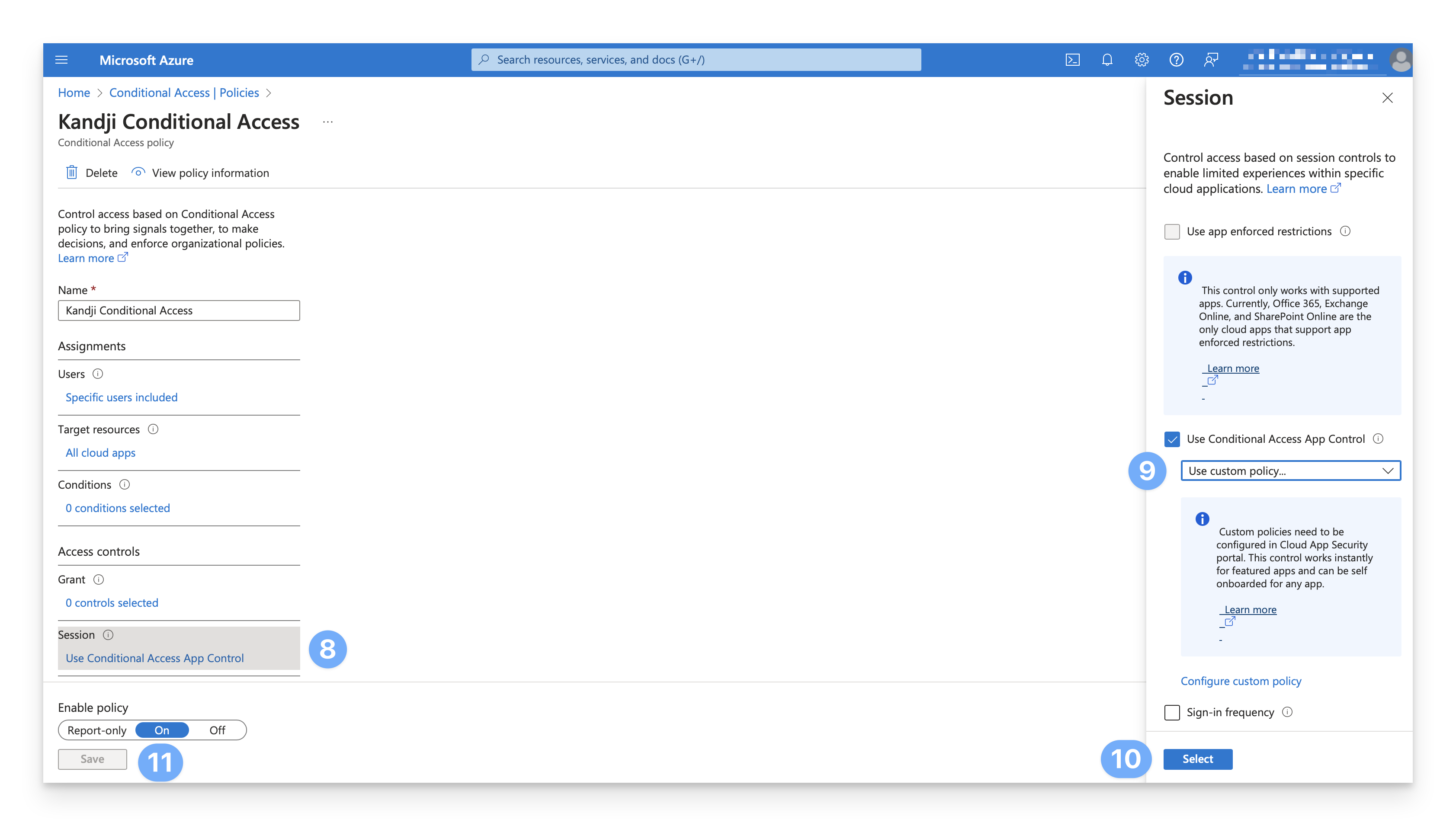
In the current 2026 security climate, access status is rarely static. It is calculated dynamically through "Conditional Access" policies. These policies look at several variables before finalizing a status.
Device Posture and Health
If a user attempts to access corporate data from a device that is missing critical security patches or has its firewall disabled, the system may change the access status to "Restricted" or "Quarantined." Even with valid credentials, the status is downgraded because the device itself poses a risk to the network.
Geographic and IP Filtering
Access status is heavily influenced by location. Many organizations implement "Geofencing." If a user's account shows a login from a country where the company does not operate, the access status is immediately flagged as "High Risk," and access is denied. This is a primary defense against credential theft where attackers attempt to use stolen passwords from overseas.
Time-of-Day Restrictions
For specific roles, such as retail workers or support staff, access status may be "Active" only during scheduled shift hours. Attempting to log in at 3:00 AM on a Sunday might result in an "Unauthorized" status, regardless of the user's seniority, to prevent unauthorized data exfiltration during off-hours.
Comparison of Access Status Error Codes and Meanings
When troubleshooting access issues, understanding the relationship between the error message and the underlying status is vital. The following table outlines common scenarios encountered in modern web and network environments.
| Error Code/Message | Root Access Status | Common Cause | Recommended Action |
|---|---|---|---|
| HTTP 401 Unauthorized | Unauthenticated | Invalid credentials or expired session token. | Re-enter password or refresh MFA token. |
| HTTP 403 Forbidden | Authenticated but Unauthorized | User lacks permissions for the specific resource. | Request permission from the data owner. |
| Account Locked | Suspended | Too many failed attempts or security alert. | Wait for lockout timer or contact IT Helpdesk. |
| Access Denied (Policy) | Conditional Block | Device is non-compliant or location is blocked. | Check VPN status or update system patches. |
| Status: Pending | Awaiting Authorization | Workflow-based access request is in progress. | Follow up with the designated approver. |
| 503 Service Unavailable | Resource Offline | The target server or application is down. | Check system status page for outages. |
Troubleshooting "Access Denied" and Status Failures
Resolving an unfavorable access status requires a methodical approach. Because modern systems use Zero Trust Architecture, the failure could exist at the identity level, the network level, or the application level.
- Verify Identity Health: The first step is to ensure your account is not locked or expired. Check your corporate dashboard or attempt to log into a neutral service (like a single sign-on portal) to see if the issue is global or resource-specific.
- Check Connection Variables: If you are working remotely, verify your VPN or Secure Access Service Edge (SASE) connection. A "Denied" status is often triggered if the system cannot verify your IP address as part of the trusted network.
- Audit Device Compliance: Ensure your operating system and security software are up to date. In 2026, many "access status" checks fail because the device's security certificates have expired or a mandatory update was skipped.
- Clear Cache and Cookies: In web-based applications, an "Unauthorized" status can sometimes be caused by a "stale" session cookie. Clearing your browser cache forces the system to perform a fresh authentication handshake.
- Review Permission Levels: If you can log in but cannot see specific files, the issue is likely your authorization status. Check with your team lead to ensure you have been added to the correct Active Directory or LDAP groups.
The Future of Access: Continuous Adaptive Access
As we move through 2026, the industry is shifting toward Continuous Adaptive Access. In this model, "access status" is re-evaluated every few minutes, not just at the initial login. If a user’s behavior changes—for example, if they start downloading an unusual volume of data—their access status can be automatically downgraded from "Full Access" to "Read-Only" in real-time.
This shift moves away from the "castle and moat" strategy and toward a more granular, identity-centric approach. For the average user, this means that maintaining a positive access status requires consistent adherence to security protocols and the use of managed, healthy devices.
Access Status FAQs
What is the difference between "Status 401" and "Status 403"?
A 401 error means the system does not know who you are; you have failed to provide valid credentials. A 403 error means the system knows exactly who you are, but you do not have permission to access the specific resource you requested. Think of 401 as having no ID to enter a building, while 403 is having an ID but trying to enter a room you aren't allowed in.
Why does my access status say "Locked" after I changed my password?
This is a common issue where old credentials are saved in a "keychain" or "credential manager" on a mobile device or background application. Those apps keep trying to log in with the old password, failing repeatedly, and triggering an automated security lockout. To fix this, clear all saved passwords for that account before attempting to log in with the new one.
Can an administrator see why my access status was denied?
Yes. Modern IT departments use Security Information and Event Management (SIEM) tools that log every access attempt. These logs show the specific reason for a denial, such as "MFA Failure," "IP Address Blocked," or "Missing Security Certificate." If you are blocked, providing the exact time of the attempt helps the administrator find the log entry quickly.
Does a VPN change my access status?
A VPN can significantly impact your access status. For many corporate resources, being on the VPN is a prerequisite for a "Granted" status. Conversely, using a public or unauthorized VPN might lead to a "Denied" status because the organization cannot verify the security of the tunnel you are using.
How long does a "Locked" access status last?
Lockout durations vary by company policy. Some organizations use a "Cool-down" period of 15 to 30 minutes, after which the status automatically returns to "Active." Others require a manual reset by an IT professional to ensure that the account hasn't been compromised.
Maintaining a Consistent Access Status
To ensure uninterrupted access to your digital tools, users should adopt a proactive approach to identity management. This includes regularly updating passwords when prompted, ensuring all MFA methods (such as authenticator apps or hardware keys) are functional, and only accessing sensitive data from approved, company-managed devices.
For IT professionals, the key to managing access status lies in automation and clear communication. By providing descriptive error messages instead of generic "Access Denied" screens, you can reduce helpdesk volume and empower users to resolve simple compliance issues—like updating their software—independently. Regular audits of "Pending" and "Expired" accounts are also essential to maintain a "Least Privilege" environment and reduce the overall attack surface of the organization.