To access Microsoft Access, you must have a compatible Microsoft 365 subscription or a standalone license installed on a Windows PC. Begin by launching the application from your Start menu, selecting "Blank Database" or a template, and defining your tables to store data through structured fields and primary keys.
Microsoft Access remains a cornerstone for small to medium-sized businesses and departmental data management in 2026. While cloud-based solutions have proliferated, the local power, rapid application development (RAD) capabilities, and deep integration with the Office ecosystem make Access an indispensable tool for those who need more structure than a spreadsheet but less complexity than a full-scale SQL Server deployment. This guide explores the technical prerequisites, core architectural components, and step-by-step procedures required to master this relational database management system (RDBMS).
Understanding Prerequisites and System Requirements
Before attempting to access Microsoft Access, it is essential to understand the licensing and hardware environment required for optimal performance. Unlike Word or Excel, Microsoft Access is historically and currently a Windows-exclusive desktop application. Users on macOS or Linux typically require virtualization software or remote desktop protocols to utilize the software.
As of 2026, the primary method for obtaining Access is through a Microsoft 365 subscription. Specifically, the "Microsoft 365 Apps for business" or "Microsoft 365 Business Standard/Premium" tiers include the desktop version of Access. If you are using the Home/Personal versions, ensure your specific plan lists Access, as it is often excluded from the "Basic" or web-only tiers.
Technical Hardware Specifications
For a fluid experience, especially when dealing with databases approaching the 2GB limit, the following specifications are recommended:
- Operating System: Windows 10 or Windows 11 (22H2 or later recommended).
- Processor: 1.6 GHz or faster, 2-core processor.
- RAM: 8 GB minimum; 16 GB highly recommended for complex queries and multi-user environments.
- Disk Space: 4 GB of available space for installation, plus additional high-speed SSD storage for the database files (.accdb) themselves.
The Architectural Pillars of Microsoft Access
To use Access effectively, one must move beyond the "flat-file" mindset of Excel. Access is built on four primary objects. Understanding these is the first step in learning "how to" navigate the interface.
1. Tables: The Foundation of Data
Tables are where all your data lives. Unlike a spreadsheet, an Access table requires strict data typing. You cannot put text in a date field without triggering an error. This "data integrity" is why Access is superior for long-term record keeping. Each table should represent a single subject (e.g., Customers, Orders, or Products).
2. Queries: The Engine of Information
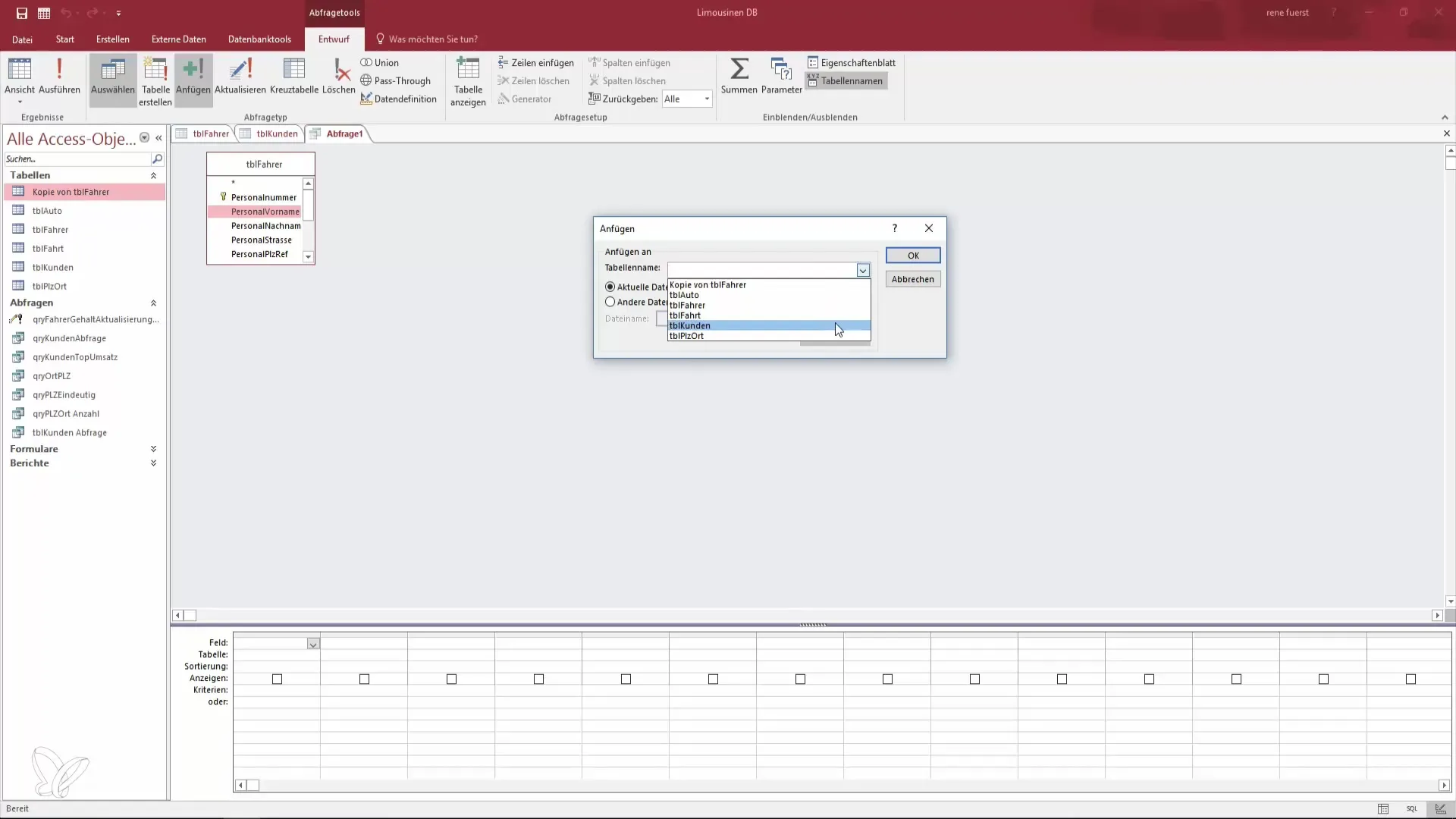
Queries allow you to filter, calculate, and combine data from multiple tables. If you want to see "All customers who bought a blue widget in 2025," you use a query. Access uses a graphical interface called the Query Design View, which writes Structured Query Language (SQL) in the background for you.
3. Forms: The User Interface
Directly editing tables is risky and unintuitive. Forms provide a clean, controlled environment for users to enter and edit data. You can add buttons, dropdown menus (combo boxes), and validation rules to ensure that the data entered into your tables remains accurate.
4. Reports: The Professional Output
Reports are used to summarize and present data for printing or PDF distribution. Whether it is a monthly sales invoice or a high-level executive summary, reports allow you to group data by category and perform calculations like sums and averages at the end of each section.
Step-by-Step: Creating Your First Database
Starting a project in Access requires more upfront planning than other Office apps. Follow these steps to ensure a functional build.
Phase 1: Normalization and Planning
Before opening the software, sketch your data structure on paper. Identify the relationships between your entities. For example, one customer can have many orders. This is a "one-to-many" relationship. Proper normalization prevents redundant data, which saves space and reduces the risk of errors when updating information.
Phase 2: Building Tables and Defining Fields
- Open Access and select Blank Database.
- Name your file and choose a save location.
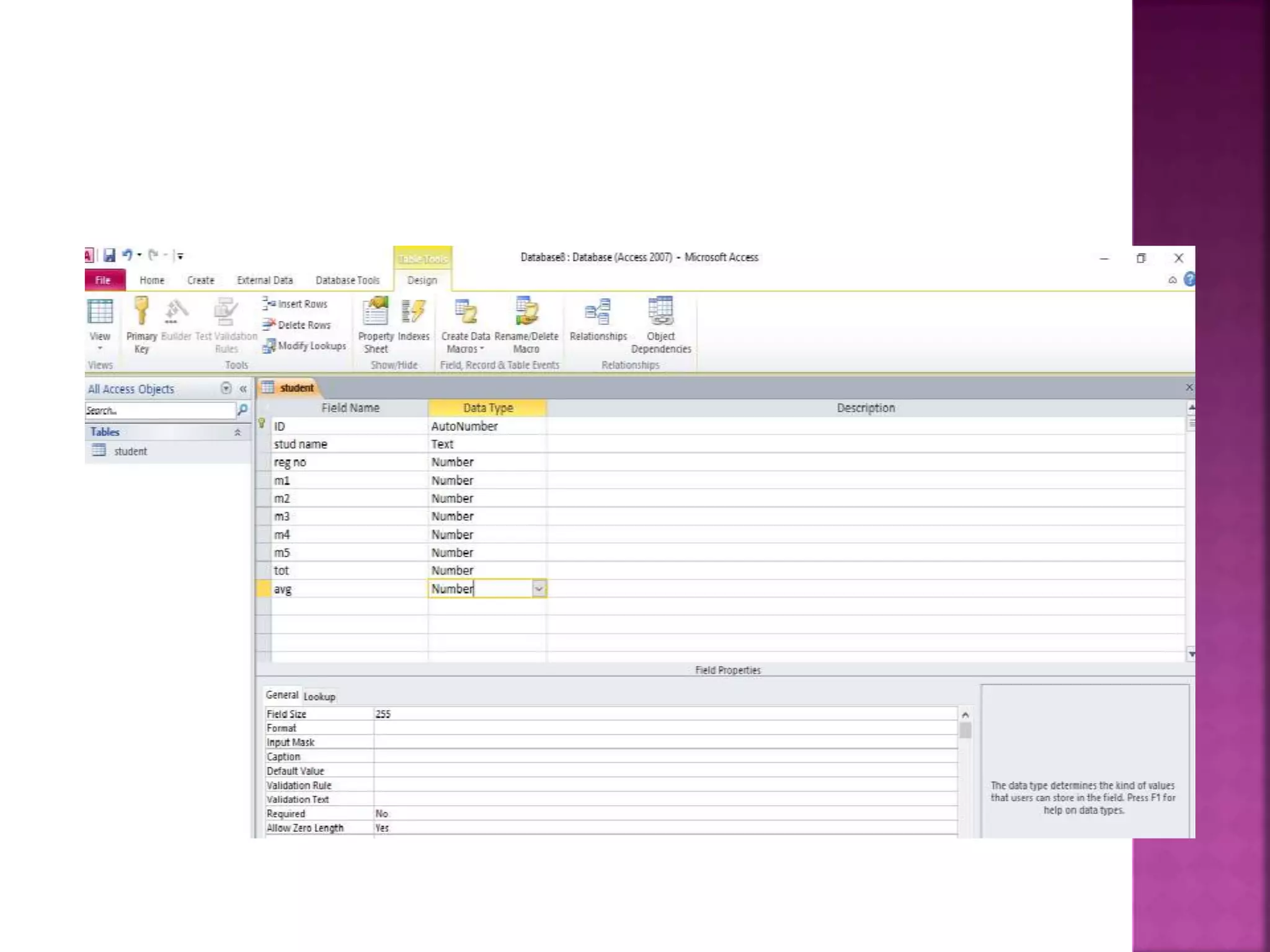
- In Datasheet View, you can quickly enter headers, but for professional builds, switch to Design View.
- Define your Primary Key. This is a unique identifier (like an ID number) for every row.
- Assign Data Types: Use "Short Text" for names, "Currency" for prices, and "Date/Time" for timestamps.
Phase 3: Establishing Relationships
Once you have multiple tables, go to the Database Tools tab and click Relationships. Drag the Primary Key from your parent table (e.g., CustomerID) to the Foreign Key in the child table (e.g., OrderCustomerID). Check the box for Enforce Referential Integrity. This ensures that you cannot create an order for a customer that does not exist.
Comparing Access to Alternative Solutions
It is common to wonder if Access is the right tool compared to Excel or a more robust SQL database. The following table highlights the material differences as of 2026.
| Feature | Microsoft Excel | Microsoft Access | SQL Server / Azure SQL |
|---|---|---|---|
| Primary Purpose | Calculation & Analysis | Data Management & Apps | Enterprise Scalability |
| Data Capacity | ~1 million rows | 2 GB per file | Petabytes |
| Multi-user Access | Limited (Co-authoring) | Native (Split Database) | High Concurrency |
| Data Integrity | Low (Flexible cells) | High (Typed fields) | Highest (Server-side) |
| Learning Curve | Low | Moderate | High |
| Offline Use | Yes | Yes | Limited / Requires Client |
Advanced Access: Splitting and Security
For those looking for how to use Access in a multi-user business environment, "splitting" the database is a non-negotiable step. A split database consists of two files:
- The Back-End: Contains only the tables and resides on a shared network drive or SharePoint site.
- The Front-End: Contains the queries, forms, and reports. Each user gets their own copy of this file on their local machine.
This architecture prevents database corruption and significantly improves speed. When a user opens their local front-end, it links to the tables in the shared back-end. In 2026, many organizations link their Access front-ends to Dataverse or Azure SQL tables, allowing for local ease of use with the security and scale of the cloud.
Troubleshooting Common Access Issues
Even experienced users encounter hurdles. Here are the primary issues and their resolutions:
- "Unrecognized Database Format": This often indicates file corruption. Use the Compact and Repair Database tool found under the File menu. This tool defragments the file and attempts to fix structural errors.
- Action Query Blocked: By default, Access blocks queries that modify data (like Delete or Update queries) unless the database is in a "Trusted Location." Move your file to a folder you have designated as trusted in the Access Trust Center.
- Type Mismatch Error: This occurs when a query tries to compare two different data types—for example, trying to match a text-based "ProductCode" with a numeric "ID" field. Ensure your joining fields share the same data type.
Frequently Asked Questions
Can I access Microsoft Access on a Mac?
Microsoft does not produce a native version of Access for macOS. To run it on a Mac, you must use a virtual machine (like Parallels Desktop) to run Windows or use a tool like Boot Camp on older Intel-based Macs. Alternatively, many users turn to web-based alternatives like Power Apps if they are strictly in a Mac environment.
What is the maximum size for an Access database?
The hard limit for an Access .accdb file is 2 gigabytes. While this sounds small, it can hold hundreds of thousands of records if the data is primarily text and numbers. If you reach this limit, you can either link multiple Access files together or migrate your tables to a SQL Server back-end while keeping the Access front-end interface.
Is there a free version of Microsoft Access?
There is no free version for creating databases. However, Microsoft provides the Access Runtime, which is free to download. The Runtime allows users who do not own the full version of Access to run and use databases created by others. They can enter data and run reports, but they cannot change the underlying design of forms or tables.
How do I share my Access database with remote users?
Standard Access files perform poorly over VPNs or slow internet connections and are prone to corruption in those environments. For remote access, the best practice is to migrate the back-end tables to SQL Azure or SharePoint Lists. This allows the local Access application to pull data over the web securely.
Can Access integrate with Excel?
Yes, Access and Excel are designed to work together. You can "Link" an Excel spreadsheet as a table in Access, meaning any changes made in Excel are immediately visible in your Access queries. You can also export any Access report or query directly to Excel for further graphical analysis.
Developing a Long-term Data Strategy
To master Microsoft Access, you should focus on incremental development. Start by automating a single manual process—such as tracking inventory or managing client contacts. Once you have a stable table structure and a few functional forms, explore the use of Macros or VBA (Visual Basic for Applications) to automate repetitive tasks.
In 2026, the most successful Access developers are those who view the platform as a "Front-End" for larger data systems. By learning how to connect Access to external APIs and cloud databases, you ensure that your skills remain relevant even as your organization's data needs grow. Always maintain a regular backup schedule, as the file-based nature of Access makes it more vulnerable to hardware failure than server-side databases.